On November 24, 2026, xAI rolled out GrokBot 1.3.0. The biggest surprise in this release is quite practical: bots inside Slack can now hand off tasks to one another, and the app can pause before risky actions to show confirmation cards. GrokBot used to feel like a personal assistant with a neat cloud browser. After the November update, it looks much more like a full office for a team of virtual coworkers.
From the outside, the client looks almost too simple. You visit the GrokBot page, download the app, and see a clean window that is easy to mistake for a standard messenger. There is a list of bots on the left and an input bar at the bottom, with no clutter of tabs or toggle panels. That simplicity is the platform's main trap. Half of its features sit just a couple of clicks deep, hiding a full virtual machine, background schedules, and a strict weekly quota system. Let's take the whole setup apart, from first launch and cloud Chrome to Slack bot swarms and your actual monthly bill.
Five Platforms, Voice Mode, and a Dedicated Cloud Computer
xAI keeps platform support tidy: the client runs on macOS, Windows, Linux, iOS, and Android. Everything you set up on your laptop syncs to your phone, so you can manage your bots from your desk or on the move. The left sidebar holds all your bots. You can group them into folders and pin your most important ones at the top so active workflows don't get lost among dozens of experiments.
Below the chat box, next to the usual file attachment icon, sits a full Voice Mode. Unlike basic voice-to-text dictation, this is a live two-way conversation in real time. You grant microphone access, and the bot listens and talks back like someone on speakerphone until you end the call. It works well when your hands are busy and you want to brainstorm or talk through a plan.
Still, the real reason to pay attention to GrokBot lies a bit deeper. Every bot gets its own Cloud Computer, which is a dedicated remote virtual machine. Inside, it runs a full Chrome browser, a terminal, and its own file system. Your laptop stays cool because all the heavy lifting happens on xAI's servers.
You can interact with this computer in two modes: watching and taking control. It works in a very straightforward way. Say you type a simple request in chat: open nocode.mba in the browser on your computer. The bot wakes up its virtual machine, launches Chrome, loads the site, and sends a screenshot back to the chat. At any point, you can click to take control and click around the remote desktop yourself.
Why does that matter in practice? For one thing, you can log in manually once to a stubborn web app with two-factor authentication, or see the exact step where an agent got stuck. If you don't want to type passwords by hand every time, the Connect apps button in the bottom-left corner lets you link password managers so the bot can sign in on its own inside its cloud Chrome. You can also connect office tools like Google Docs, data and scraping sources (email, Firecrawl, Hugging Face), and apps for sales, marketing, and finance. The more work tools you connect, the richer the bot's context becomes, and the less you have to copy and paste between tabs.
Marketplace Templates, Scheduled Routines, and Direct X Integration
You don't have to build your first agent from scratch. The app includes a built-in Templates marketplace filled with ready-made setups from the GrokBot team and other users, sorted by tasks like engineering, sales, and marketing. A template is basically a pre-built bundle of instructions, roles, and schedule drafts that turns an empty bot into a focused specialist in a couple of clicks.
Here is how it works in practice. Suppose you import the SEO and AEO desk template from the catalog. It is built to take a list of keywords or Search Console data and turn them into article ideas and ready-to-use briefs for both classic search and AI answers. Once imported, a new bot appears in your sidebar and immediately creates three background tasks called Scheduled Routines: Content ideas digest, Weekly search report, and Topic watch.
There is a smart safety detail here: all routines from imported templates start paused. They won't start firing requests and burning your quota the second you click add. You go through a quick chat setup first, pick which plugins to connect, and manually turn on only the routines you actually need.
Now let's look at building a bot from scratch. You create a new bot and give it a clear name, such as weekly activity alert tied to San Francisco. Interestingly, the name alone is enough for the bot to grasp the goal. It immediately offers to put together a weekly roundup of local events. You clarify a few details (concerts, food, tech meetups) and ask for a summary every Monday morning. The bot saves the schedule for 8:00 AM US Eastern Time on its own.
Here is where new users hit GrokBot's most surprising interface twist. If you open the bot's settings, look at its routines, and click Edit, you won't see a classic form with ten input fields, dropdowns, and cron expressions. Instead, the app drops you right back into the chat and pre-fills a natural-language edit prompt in the input bar. xAI intentionally hid complex settings tables from view. Want to change a schedule or filter rules? Just tell the bot in plain words. It feels disorienting for the first five minutes, and then you get used to treating the chat itself as the main control panel.
Once you have fine-tuned a bot and built a reliable workflow, you can package it back into a template via Share → Share a bot template. The bot inspects its saved memories, custom skills, routines, and required plugins. If nothing extra is needed, it clearly reports that no plugins are required and builds a neat template you can publish to the marketplace or keep as a draft.
Another major advantage of the platform is its built-in connectors for X, X Money, GitHub, and Origin. Because xAI and X live inside the same ecosystem (alongside SpaceX under Elon Musk), the link to X data, trends, and publishing is as direct as it gets on the market. If your work relies heavily on monitoring X, spotting news angles, or running accounts there, third-party AI assistants simply don't have that short a path.
Orchestrator Bots, Bots Creating Bots, and TeamBots
One bot is handy. Ten bots become a headache when you open your fifth chat in the evening and completely forget what each one did yesterday. GrokBot tackles this at three levels: a primary orchestrator bot, agent-to-agent messaging, and team workspaces.
In your bot list, you have one main bot marked with a star (Primary Bot). Think of it as a chief of staff. It doesn't have the narrow memories or local routines of your other bots, but it can directly query its peers and read their transcripts. Checking this is simple and honest: you can ask the orchestrator to check in on weekly activity alert and SEO and AEO desk and report what they have done lately. The orchestrator scans their logs and honestly replies that neither bot has done any real work yet. There are no made-up status reports; cross-agent transcript reading genuinely works.
Even better, bots can talk to each other in shared chats and create new colleagues when you ask. If you type "create a new bot for cold emails," the agent doesn't spin up an empty shell from scratch. It searches the template marketplace, picks a suitable setup for a cold email bot, and adds the ready-made specialist straight to your sidebar.
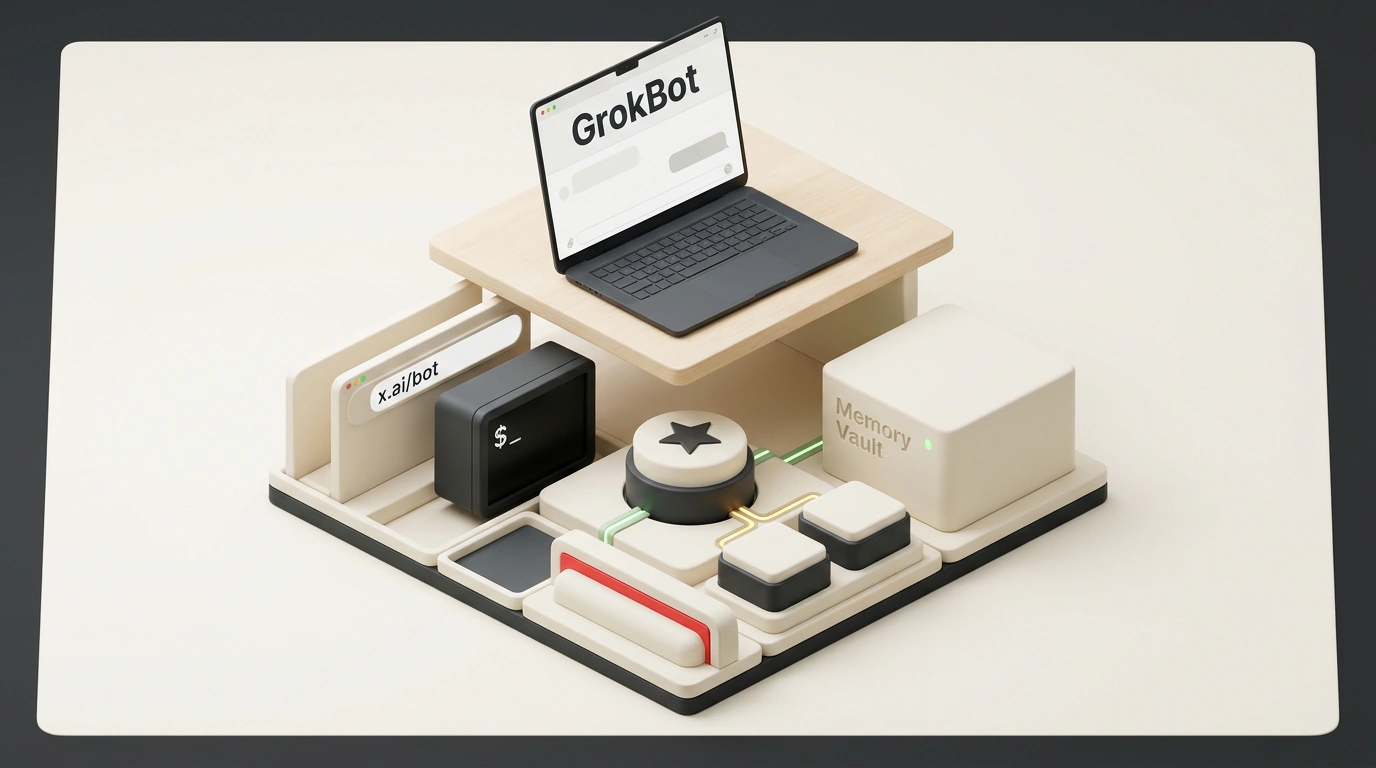
Conceptual diagram of a multi-agent GrokBot headquarters with a starred orchestrator bot, specialist bots, and a shared secure Memory Vault.
Once your lineup grows past five or six active agents, you can use the orchestrator to build a unified control panel. In practice, one orchestrator can read the recent tasks of six other bots and spend about eleven minutes building a separate summary dashboard showing each agent's status. The first pass rarely looks perfect: cards may overlap, and you will need a couple of five-minute fixes telling it to adjust specific spots without touching the rest of the layout. After a couple of iterations, though, every status sits on one screen. Recent updates also added memory import from other AI tools, making it much easier to bring over older workflows.
If you work with a team rather than solo, TeamBots step in. GrokBot launched as a strictly personal assistant, but now one bot can be shared across a whole team. The structure is clever and practical: tools, routines, connected plugins, secure third-party API keys, and the shared Memory Vault belong to the bot, while each employee's personal chats with that bot stay private. Useful knowledge and context only enter the shared pool and start working for everyone after an owner or manager approves them.
| Feature | Personal Bot | Orchestrator Bot (Starred) | TeamBot |
|---|---|---|---|
| Who has access | Single user only | Single user only | Entire invited team |
| Memory and context | Local memory of one bot | Reads logs and transcripts of your other bots | Shared Memory Vault with moderation |
| Chat privacy | Completely private | Completely private | Each employee's personal chats stay hidden from coworkers |
| Connections and keys | Personal connectors | Inherits access to inspect peer bots | Shared or individual plugins, protected API keys |
| Required plan | Individual Premium or higher | Individual Premium or higher | Corporate Teams or Enterprise plans |
This split removes the biggest fear around team adoption. Nobody wants the whole department reading their rough drafts and silly AI prompts, yet everyone wants the bot to remember company rules, brand tone, and work tool access.
What 1.3.0 Brought: Slack, Microsoft Teams, and the X Drafts Carousel
The 1.3.0 release from November 24, 2026 is rolling out gradually, and some enterprise features require separate admin approval. Still, the direction is clear right away: xAI is embedding GrokBot into the tools where teams already spend their workday, including corporate chat, email, and recruiting.
Slack received the most noticeable upgrade. Bots inside a workspace can now pass the baton to each other through Bot-to-Bot Handoffs. Here is how a typical flow looks: you ask the first bot to brainstorm content topics, then tell it to hand off keyword research to a second specialist bot and have the final list sent to your direct messages. The agents run the chain on their own, and a clean result lands in your DM. If a connection is missing along the way, interactive buttons appear right inside the message so you can link the service.
Infographic blueprint of Bot-to-Bot Handoffs in a corporate messenger alongside the X Drafts Carousel.
xAI also fixed several small but annoying Slack habits. You can now ask a bot to bring a reply from a long thread back into the main channel so the whole team sees the outcome without asking where the document went. In 1-on-1 DMs, bots now reply directly in the main feed instead of forcing a new thread every time. In group channels, they respond simply when you call their name, even if you forget @mention. Bots can also forward messages as links and read forwarded messages while politely ignoring forwards meant for someone else.
The second major stop is Microsoft Teams and enterprise controls. Teams setup used to stall silently during approval steps. Now GrokBot displays clear installation statuses, handles admin approval requests properly, and gives you a quick reconnect button if something drops. Admins also gained serious control levers: they can restrict which email domains employees are allowed to link to bots, set finer connector permissions for TeamBots, and require admin approval when someone joins a team via an invite link. For companies where security teams dislike ad-hoc AI experiments, this hits the mark.
Among everyday features in 1.3.0, the X Drafts Carousel is especially handy. When you ask a bot for several post ideas for X, they no longer dump into one long wall of text. Instead, you can swipe through them in a horizontal carousel. Drafts for email, Slack, and meeting chats also group into one compact card where you can review the copy, cut fluff, or send manually. Crucially, the carousel never publishes anything on its own; the final send button always stays in human hands.
Three more additions help with hiring and daily messaging. Once you connect the Ashby plugin, a bot can answer questions about open roles, interview stages, candidates, and offers—such as pulling a hiring table for the content team in seconds—within your account's permissions. Email drafts, including Mac Mail, now include a BCC field right on the card, which is useful for outreach when a colleague needs to stay in the loop. On Google Drive, bots gained full editing tools for Docs, Sheets, and Slides, while the iOS and Android apps added "Buy now" buttons for single-item purchases and "Notify me" alerts to track restocks.
Permission Panel and Question Cards: Keeping Bots on a Leash
The more permissions you grant an autonomous agent, the scarier it is to wake up and find that it sent a rough draft to a client or overwrote a live spreadsheet after misreading your prompt. Recent versions of GrokBot build in two human-in-the-loop safeguards: the Permission Panel with auto-check rules and Question Cards.
The flow is transparent. In the Permission Panel, you set clear boundaries in advance: which actions a bot can run silently, and which ones must pause for your approval. When an agent hits one of those guardrails or simply lacks key details, it stops guessing and displays a structured card with clear options or an approve button.
You can even use this principle to set up a dedicated gatekeeper bot that filters any changes. It lets read-only data requests pass without friction, but the moment a task tries to delete, overwrite, or send something externally, a confirmation card pops up. That is a great setup if you like reviewing bot summaries from your phone on the go without risking an accidental tap breaking live work files.
When the system pops up a prompt asking to let a bot run commands on your computer, it is easy to click Allow automatically while thinking only about one trusted agent. The catch is that this permission applies to every bot in the app, not just the chat you have open. If you work with live work accounts and external services, never hand out a global blank check. Keep your Permission Panel rules active and double-check mixed requests like 'read this sheet and apply edits right away'.
Stress-testing saves a lot of stress here. Before putting a new bot into a daily routine, feed it messy data—such as a company with no website or a conflicting prompt that mixes reading and writing. You will see right away whether it stops honestly with a Question Card or charges ahead and improvises.
Pricing and Shrinking Weekly Limits: What Automation Really Costs
Now for the cold shower: GrokBot has no free tier. You cannot test the platform without putting a card down. Access only unlocks on paid xAI subscriptions, and the entry tier is bundled directly with the X ecosystem.
For individuals, xAI splits access into three tiers. The entry point is The X Subscription Premium, which includes Grok, GrokBot, and X Premium+. For people who outgrow the basic quota and run bots heavily every day, there are higher Super and Ultra tiers. If you need TeamBots, shared Memory Vaults, advanced admin controls, and bots joining meetings, you will need corporate Teams or Enterprise plans.
Monthly Price of Individual xAI Subscriptions with GrokBot Access
The chart makes the step between tiers obvious: the entry ticket sits well below the higher personal plans, but each jump multiplies the price, and none of these personal tiers cover team collaboration.
The real financial catch isn't the subscription sticker price, though—it is how usage is metered. GrokBot runs on weekly usage quotas, and xAI does not publish a fixed message or token count on its public pages because limits are dynamic. In your account's Usage section, you can inspect a detailed breakdown showing how much quota went to manual chats, how much went to scheduled background routines, and which bot burned the most. If you burn through your weekly limit early, the system offers to sell you extra credits.
Here is what you should know before paying: according to active users, xAI used to hand out noticeably more generous quotas. As models grew heavier and smarter, effective limits tightened, making GrokBot more expensive to run in practice. Your quota drains especially fast when you grab a stack of shiny templates from the marketplace and turn on all their background routines at once. You can hit zero before Wednesday, and the bot that burned it might be one whose reports you never even opened.
Who Gets Value from GrokBot—and the Classic Rookie Mistakes
Weighing the pros against the price tag, GrokBot is probably overkill if you just want to translate a few emails a day or outline an article. A standard web chat for less money—or even free tiers of other models—handles that fine. The platform earns its keep in three clear scenarios:
- Your work revolves around X, social monitoring, and regular posting, where native X and X Money connectors plus the drafts carousel save hours.
- You want an agent with a full browser, terminal, and file system in the cloud, without setting up your own VPS, managing Docker, or configuring proxies.
- Your team lives in Slack or Microsoft Teams and wants a chain of specialist bots backed by a shared knowledge base and proper admin access controls.
To avoid wasting your first paid week, follow a simple, disciplined launch path.
Starter Checklist: How to Launch Your First Bot Without Burning Your Quota
- Download the client from the official x.ai/bot page and sign in with an active paid subscription.
- Connect only essential services via Connect apps (email, Google Drive, or one core work tool)—don't link everything on day one.
- Import a single template from Templates or build one simple bot for a clear, measurable task.
- Check the bot's routines tab and leave at most one background task active while keeping the rest paused.
- Set strict rules in the Permission Panel so any write, delete, or external send requires confirmation via Question Cards, and check the Usage tab every couple of days.
New users usually trip over the same three mistakes. First, they try to spin up ten bots on the very first evening for every possible task, ending up with ten abandoned chats that quietly chew through their weekly quota. It is much safer to build one reliable bot, test it on real work, and only then add a second. Second, they blindly click "Allow all" on system prompts, handing computer command access to every agent in their workspace at once. Third, they accept the first generated report or summary page without testing it on messy inputs. Even a smart orchestrator can overlap layout cards or miss an edge case on its first try, and two short review loops always cost less than cleaning up a live mistake.