In November 2026, a feature Google first announced on October 15 went live in corporate Google Workspace accounts—the AI Inbox sidebar in Gmail. The rollout began on October 12 for Rapid Release domains and October 26 for Scheduled Release, spanning 15 days. Confusion followed almost immediately: on November 10, Google separately opened its Help Me Write email generator and AI Overview summaries to adult Workspace users. Once I checked the rollout schedules, it made sense why plenty of people only spotted the draft button and assumed that was the whole update, while the real inbox overhaul was tucked into the left panel.
AI Inbox tackles a practical headache: how to stop spending your mornings reading dozens of emails back to back and let a model pull action items straight out of your threads.
Why folders and labels fall short against a morning inbox pileup
You open your inbox after a weekend or a two-day trip and find 70–80 unread messages staring back at you. Filters and labels neatly sort envelopes into "Clients" or "Projects," yet they miss what actually matters: which email can wait until Thursday, and which polite paragraph hides an urgent layout sign-off due tonight.
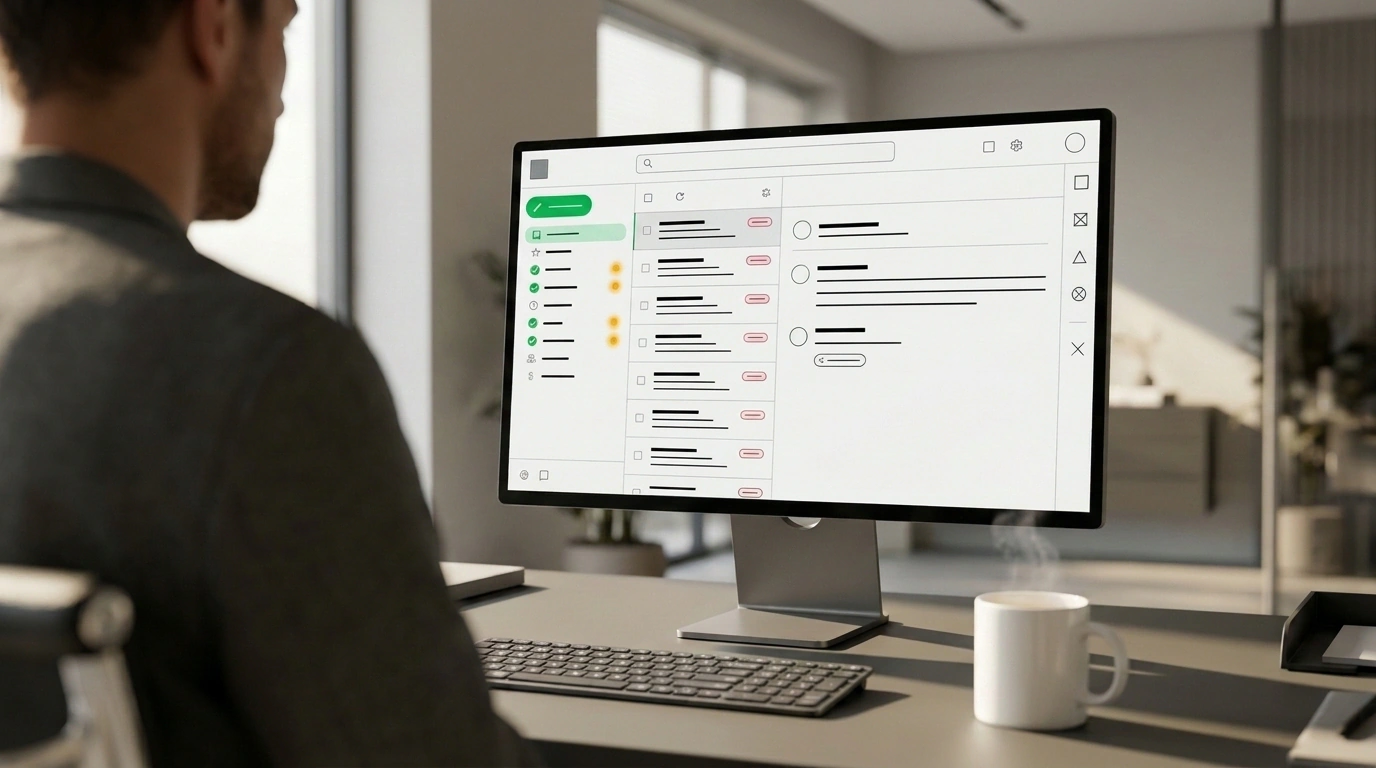
As Julian Goldie SEO shows, the AI Inbox panel flips how you triage email. Instead of a chronological stream, the screen centers on two blocks: a Suggested To-Dos checklist and Topics to Catch Up On discussion digests. Your morning starts with a ready-made action plan rather than reading messages one by one.
Inside Suggested To-Dos: catching hidden promises and attaching files
Under the hood, Suggested To-Dos runs semantic intent extraction. While a standard filter hunts for an exact keyword in the subject line, the model reads full sentences for meaning—like an assistant scanning your mail before you get to your desk. The algorithm picks up 4 types of commitments: direct requests from colleagues and clients, your own promises (like "I'll send the estimate by Friday"), deadlines, and follow-up requests left hanging without a reply.
Say a client sends a long email and only in the third paragraph asks: "Please send the onboarding guide before Friday and let us know a time for our kickoff call." In a regular inbox, that second request gets buried; AI Inbox splits both items into separate checklist lines. Instead of 70 emails, a manager sees 3–4 urgent tasks: approve the mockup by 6:00 PM, send the meeting link, and confirm the room booking.
Each line comes with View, Reply, and a completion checkmark. What really stood out to me here is how it pairs with two upgrades from May 19, 2026: Personalized Draft Replies drafts a response in your own tone, while Instant File Access tracks down the right file in Google Docs, Sheets, or Slides and attaches it to the task, saving 10 minutes of digging through Google Drive.
Topics to Catch Up On digests, Primary tab limits, and enterprise security
The Topics to Catch Up On section saves you in sprawling threads. While you were out for two days, the team traded 12 emails about event prep or 18 messages on a contract. Open the topic card, and the model condenses the thread around 4 questions: what was decided, what changed, which item is waiting on someone else, and where your input is needed ("Legal approved clause 4.2, waiting on your sign-off"). It continues the push toward proactive assistants that I covered when looking at how long-term agent memory works in Google Workspace.
I checked the official Google Workspace help docs: data is processed inside your company's protected boundary on Business Standard, Business Plus, Enterprise, and Google AI plans. To avoid tripping up during setup, keep three rules in mind:
- Only the Primary tab is scanned. The parser skips Promotions, Spam, Archive, attachments, delegated mailboxes, and encrypted messages (S/MIME). If an old auto-archive rule sweeps a contractor's emails out of Primary, those tasks will never show up.
- Expect a seven-day warmup and English only. Both admin and user must turn on Smart features and personalization, after which initial panel population takes up to 7 days; at launch, only the EN-US interface is supported.
- External trackers require extra wiring. The panel won't push cards directly into a CRM or Notion—for external automation you'll need Make, n8n, or Zapier.
Clear out overzealous archive filters from your Primary tab and give the algorithm a week to index, and your inbox turns from a wall of unread mail into a clear list of today's priorities.