If you run your Avito business from an iPhone, hearing that the official app vanished from the App Store again can easily trigger a flash of panic. That worry makes complete sense: for any seller or independent specialist, a smartphone is the main work tool. Drop out of the loop for a couple of hours, and hot leads slip to competitors while orders fall through.
Let's clear the air right away: there is no catastrophe. The servers are running fine, and Avito has official, safe workarounds ready. The key is knowing the exact steps to take and not making any rash moves.
The golden rule: don't delete it—and why speed matters
First and most important: if the Avito app is already installed and working on your iPhone, do not delete it under any circumstances. It will keep opening, sending notifications, and processing payments as usual. The classic instinct to delete and reinstall a glitchy app will leave you locked out of downloading it from the store.
Why is staying reachable so critical for sellers? Experience shows that in classifieds and local services, timing is everything. We've previously broken down how chat response speed affects deal closing: if a buyer doesn't get a reply within 5–15 minutes, over 70% of them simply close the chat and message the next seller in search results. Missing a push notification for a new Avito Delivery order also risks blown shipping deadlines and a drop in your service quality rating.
Step-by-step workarounds: Safari PWA and purchase history
If you bought a new phone, wiped your device to factory settings, or accidentally deleted the icon, there are two legitimate ways to get back up and running without changing your Apple ID region.
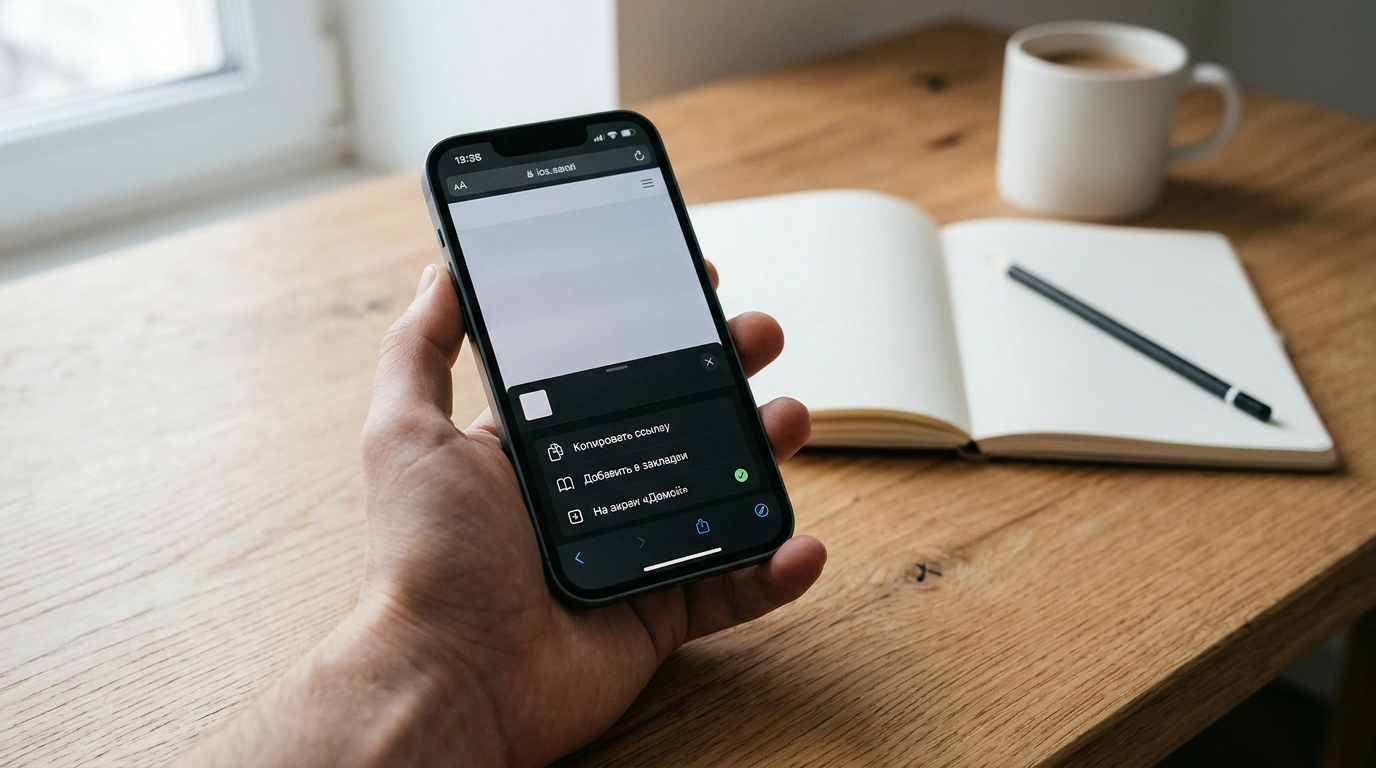
Method 1. Installing a Safari PWA shortcut with push notifications
Starting with iOS 16.4, Apple added full Web Push support for web shortcuts saved to the Home Screen. That turns Avito's mobile site into something nearly indistinguishable from the native app:
- Open the built-in Safari browser (Chrome and other third-party browsers on iOS cannot set up push notifications for Home Screen shortcuts).
- Go to
avito.ruand log into your seller account. - Tap the Share button on the bottom toolbar (the square with an upward arrow).
- Scroll down the action menu, choose Add to Home Screen, and tap Add in the top-right corner.
- Close the browser: a familiar Avito icon will appear on your Home Screen. Launch it—the service opens full-screen without an address bar.
- Be sure to open the Messages tab: a system prompt will ask for permission to send notifications. Tap Allow.
If notifications aren't coming through: open your iPhone Settings → find Safari / Avito (or the Apps section) → go to Notifications, toggle Allow Notifications on, and enable sounds and banners.
Method 2. Restoring via Apple ID purchase history
If the Avito app was ever downloaded on your current Apple ID at least once, the license stays tied to your cloud account:
- Open the App Store and tap your profile avatar in the top-right corner.
- Go to Purchased (or My Purchases).
- Type "Avito" into the search bar and tap the cloud-with-arrow icon to redownload it.
And one non-negotiable security warning: never download third-party IPA files through sketchy configuration profiles or pirate sites. That's a direct shortcut to losing your password, having money drained from your Avito Wallet balance, and leaking client chats to scammers. Safari's built-in tools are more than enough for reliable daily work.