If you're selling a couple of old items, posting them from your phone takes ten minutes. But when you sell industrial machinery, auto parts, or run a wholesale catalog with thousands of SKUs, entering listings by hand turns into an operational nightmare. Typing out voltage specs, dimensions, and manually updating prices for exchange-rate swings every day is a guaranteed recipe for mistakes. One manager drops a zero in a part number, another forgets to pull a sold machine, and an angry buyer walks away.
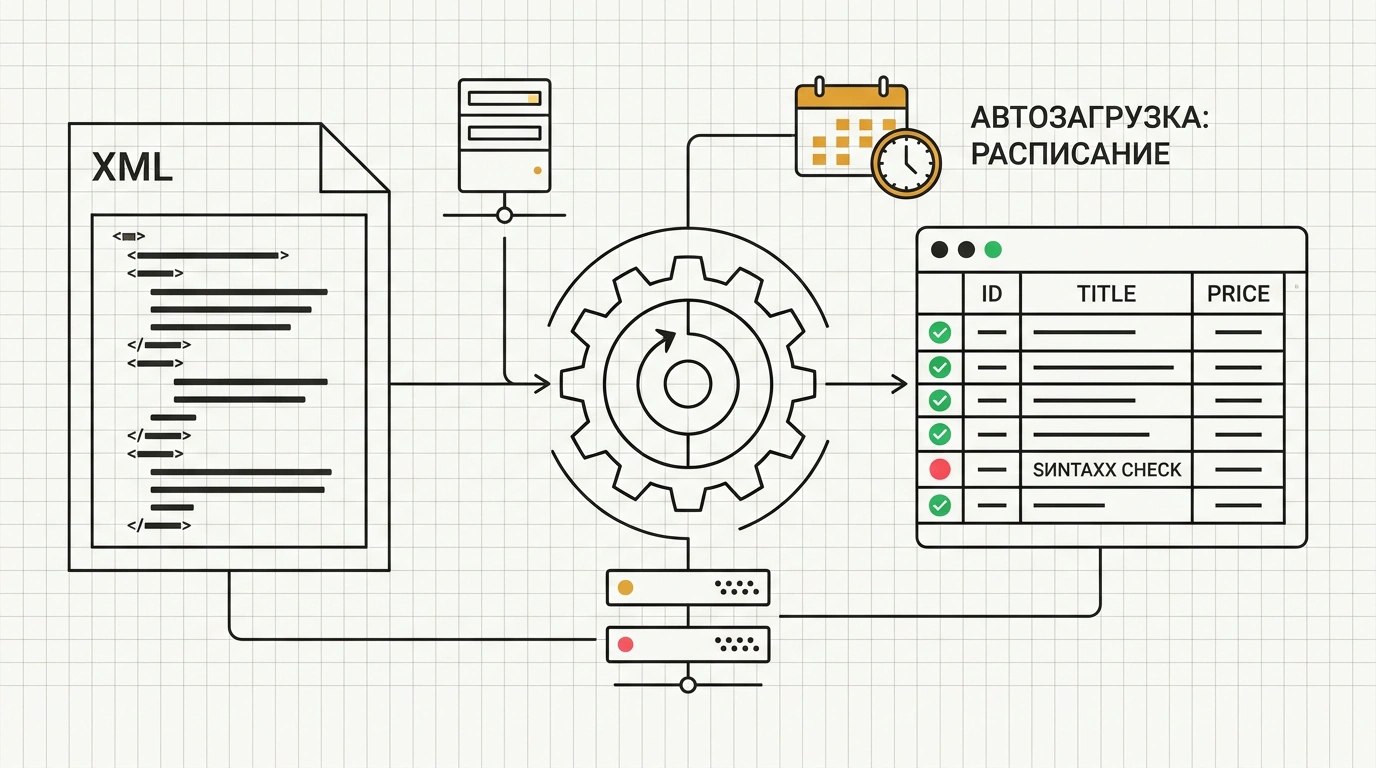
The Autoload tool inside Avito Pro clears that busywork off your plate by turning publishing, price updates, and out-of-stock removals into automated syncing via a single structured file (XML, CSV, or Excel). Let's walk through how to set it up without the headaches.
Plan Requirements and Building a Clean Data Feed
Autoload isn't enabled on every account. To unlock the tab in Avito Pro, you need a professional plan with an Extended or Maximum subscription. The technical feed limit goes up to 50,000 listings, which easily covers even nationwide distributors.
Preparing your file follows one of two paths:
- If your listings are already live on Avito: open the Autoload section and click "Create file." The system exports your current catalog into a ready-to-edit spreadsheet with categories already mapped, so all you do is adjust prices or add new rows.
- If you're starting from scratch: go to "Rules and Templates" and download the official template for your category. Each subcategory has its own set of required fields.
Every row in the spreadsheet (or <Ad> tag in XML) represents a single listing with these core fields:
Id: a unique SKU from your 1C or CRM system (up to 100 characters) that never changes.CategoryandGoodsType: exact branch names matching Avito's classifier.Title: headline up to 50 characters, no spam or ALL CAPS.Description: detailed item description up to 3,000 characters.Price: price in rubles (positive whole integer).Address: exact warehouse or store location.Images: direct public HTTP/HTTPS image URLs or filenames from a ZIP archive.
We covered catalog hygiene in detail in our guide to selling auto parts on Avito, where SKU accuracy directly drives conversion. Before uploading an XML feed, always run it through the validator at autoload.avito.ru/format/xmlcheck so you catch markup errors before anything goes live.
Scheduled Syncing and the Iron Rule of Feed Priority
You can upload a file manually through the web dashboard, but for day-to-day operations you want scheduled Autoload:
- Host the feed at a permanent URL on your server or have your CRM generate it (up to 3 feed URLs are supported).
- Set the days of the week and hours when Avito's bot should fetch updates. The crawler reads your file on schedule, matches items by your
Id, and refreshes the catalog.
After each sync cycle, the status appears in your log. If you see "Partially successful" or "Failed," click "View report" — the system highlights problem rows in red and names the exact issue (for example, "Missing required parameter: Voltage").
And remember the golden rule: data from your Autoload file always overrides manual edits. If a manager tweaks a price or swaps a photo by hand inside the mobile app, the very next scheduled fetch overwrites those edits with whatever is in your file. Need to change a price? Change it in the feed. Need to remove an item? Delete the row. Bringing it back? Re-add the row with the same Id. Automation demands discipline, but it buys your business back dozens of hours of manual labor every week.
