It's nine in the morning, and you lift your laptop lid expecting to see a finished spreadsheet of overnight orders that your AI agent was supposed to process and reconcile with inventory before the workday began. Instead of a report, a frozen line about a dropped connection sits in the console: sometime during the night, your computer quietly went to sleep, your home router reset the session for a second, and your "autonomous" digital assistant stopped before midnight.
Trying to keep long-running bots on a personal workstation quickly runs into a core question: how do you deploy an autonomous AI agent on a Linux server so it runs 24/7 and doesn't hang when you close the terminal? I studied a recent walkthrough by Cloudroom founder David Ondrej and cross-checked it with the systemd.service documentation. Continuous operation requires isolating the environment in Linux using the tmux terminal multiplexer and systemd system daemons on an inexpensive cloud VPS. Let's walk through the entire path using an end-to-end example of a developer moving an order-monitoring Python script agent_runner.py to an Ubuntu 24.04 LTS server for $5 per month.
Why a Home Computer and an Open Terminal Fail at Autonomous Tasks
Moving an agent off a laptop starts with understanding why a home machine fails even with sleep mode disabled in macOS or Windows settings. As soon as a script shifts to multi-hour duty, home network and process architecture limits kick in.
Desktop systems put the network card to sleep when idle, severing the WebSocket and HTTP keep-alive connections the agent uses to talk to model APIs. Add dynamic IP changes on home Wi-Fi, ISP-blocked incoming ports, and OS update reboots. Even sneakier is how the terminal itself works: running python3 agent_runner.py in a console window binds the script as a child process to the current session. The moment you close the terminal tab or lose internet, the system sends a SIGHUP (hangup) signal to all child programs in that window, instantly killing order processing mid-file write.
That's why 100% of the world's top 500 supercomputers and over 60% of cloud servers run on Linux. For language models, it's a native habitat: every config and log is a plain text file that's easy to manage via bash commands. Renting a basic cloud Virtual Private Server (VPS) with 2 vCPU cores, 4 GB of RAM, and 40 GB of NVMe on Ubuntu 24.04 LTS for $5 a month gives your bot a static IP and a persistent connection. By David Ondrej's math, a single VPS like this replaces third-party hosting and automation subscriptions costing $20–$30 a month, and when running your own ClickHouse analytics, saves up to $230 monthly.
Basic Setup of a Clean Linux Server and Privilege Isolation via a Dedicated User
Once you SSH into a fresh server with your key, it's important to resist the temptation to run the agent as the main administrator—root. Giving a neural network superuser privileges is like handing a day-one intern the keys to every safe in the company.
Our order-monitoring bot reads customer comments. If an attacker hides a malicious instruction in an order note (a Prompt Injection attack) or the model hallucinates a shell command, a root process could wipe system directories or leak keys. To protect the server, we build two lines of defense:
- UFW Firewall. Update packages (
sudo apt update && sudo apt install -y tmux ufw python3-venv git curl), block incoming connections (sudo ufw default deny incoming), allow outgoing API requests (sudo ufw default allow outgoing), leave only the SSH port open (sudo ufw allow OpenSSH), and enable protection (sudo ufw --force enable). - Dedicated user and key protection. Create a passwordless account without admin rights:
sudo adduser --disabled-password --gecos "" agentuser. Switching into it (sudo su - agentuser), create a Python 3.12 virtual environment inside/home/agentuser(python3 -m venv venv). PutOPENAI_API_KEYandANTHROPIC_API_KEYin/home/agentuser/.envand lock it down withchmod 600—so onlyagentuseritself can read it.
Managing Sessions with tmux and Auto-Restarting Crashed Scripts via systemd Services
With a secure profile ready, it's time to detach the order script from the terminal window using a combination of tmux (for manual debugging) and systemd (for 24/7 autopilot).
The tmux utility (terminal multiplexer) acts like a virtual monitor in a server room that stays on after you leave. You open a session with tmux new -s agent-session, launch python3 agent_runner.py, check the first few orders, then press Ctrl+b followed by d (detach) and close your laptop. You can return to the live screen anytime with tmux attach -t agent-session. We covered organizing parallel streams in more detail in our breakdown of the tmux terminal multiplexer.
However, if a model API returns a network error at night and the Python script crashes with an exception—or the host reboots the VPS—only an empty console prompt remains inside tmux. To make the agent resurrect itself, let's turn /home/agentuser/agent_runner.py into a background service (daemon) supervised by the systemd system manager:
sudo tee /etc/systemd/system/ai-agent.service << 'EOF'
[Unit]
Description=Autonomous AI Agent Production Daemon
After=network.target network-online.target
Wants=network-online.target

[Service]
Type=simple
User=agentuser
Group=agentuser
WorkingDirectory=/home/agentuser
EnvironmentFile=/home/agentuser/.env
ExecStart=/home/agentuser/venv/bin/python3 -u /home/agentuser/agent_runner.py
Restart=always
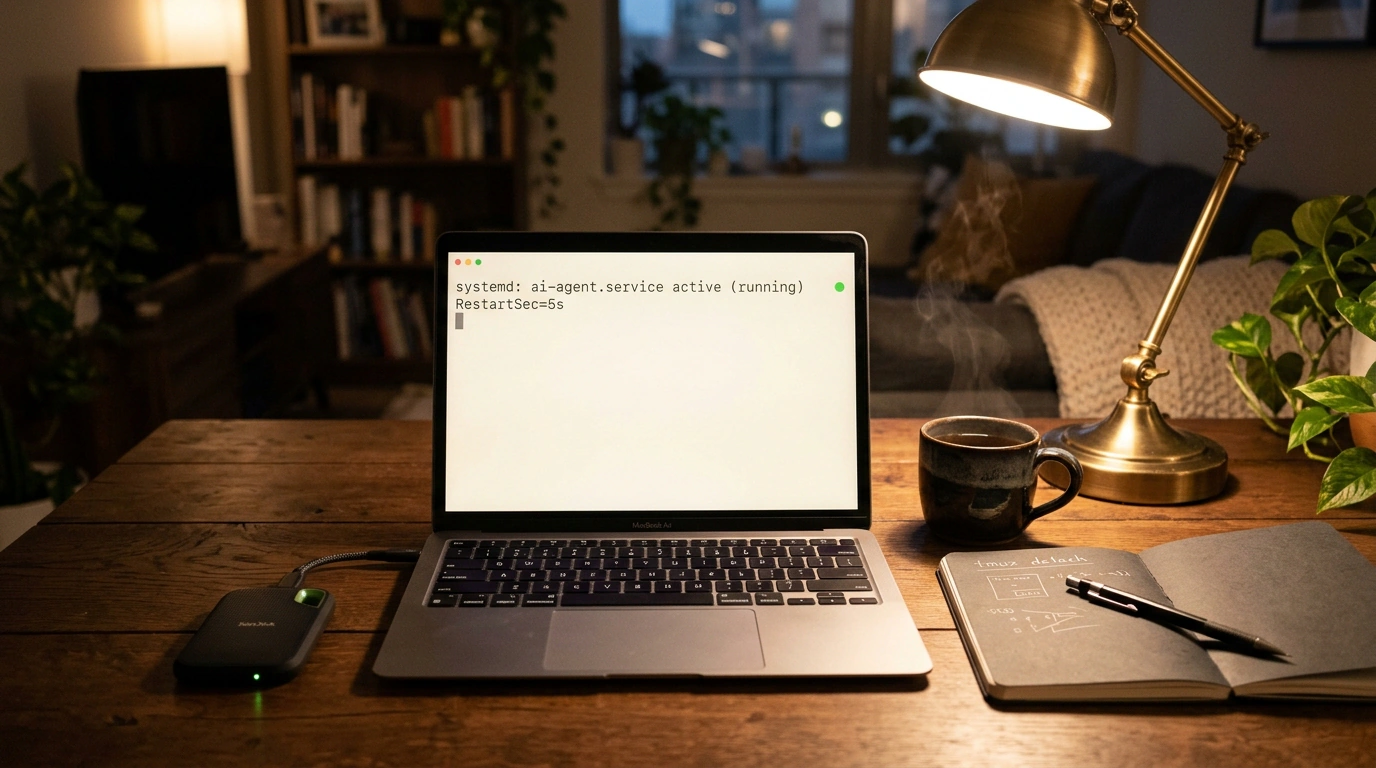
RestartSec=5s
KillMode=process
TimeoutStopSec=30
StandardOutput=journal
StandardError=journal

[Install]
WantedBy=multi-user.target
EOF

sudo systemctl daemon-reload
sudo systemctl enable ai-agent.service
sudo systemctl start ai-agent.service
Look at how the order service behaves now. Previously, any overnight model timeout knocked the script offline until morning, leaving customers waiting hours for confirmation. Now, on a VPS reboot, After=network-online.target brings the bot back up after networking starts, while Restart=always and RestartSec=5s automatically restart a crashed process in 5 seconds, protecting the CPU from overload and start-limit-hit lockouts.
The -u (unbuffered) flag in ExecStart also plays a key role: without it, Python buffers output in memory, losing the last error on a crash. With -u, every line hits the system log immediately, and the terminal-hang problem is solved for good.
Filesystem Protection, Reading Logs via journalctl, and VPS Ceiling
When the agent runs in the background, StandardOutput=journal and StandardError=journal route all its output to the systemd-journald system logger. Instead of filling 40 GB of disk with text files, you just run sudo journalctl -u ai-agent.service -f -n 100 to see the last 100 lines and a live event stream. Meanwhile, User=agentuser and WorkingDirectory=/home/agentuser sandbox the process inside its home folder.
Even with a setup this resilient, it's important to realistically size up an inexpensive server's resources:
- What this setup handles with room to spare: 24/7 operation of 1 to 15 background agents calling heavy cloud models (Claude Opus 5.5, GPT-6.1) via API while hosting a Caddy web server, PostgreSQL database, and ClickHouse analytics on the same VPS. Managing these streams on top of the server is convenient via the open-source Cloudroom panel, and to see how to wire long-term memory in Obsidian and Telegram control into a server bot, read our separate guide to setting up an AI agent on a server.
- When a basic VPS isn't enough: running heavy local neural networks (4 GB of RAM and 2 vCPU cores without a GPU won't fit model weights—for that you need GPU machines like NVIDIA DGX Spark), as well as executing untrusted third-party code without extra isolation in Docker containers. Also, David Ondrej's baseline setup doesn't configure
journaldrotation, so keep an eye on free disk space if logging is verbose.
You can verify how a process detaches from the console in one minute on your Linux server or local WSL environment: create a session with tmux new -s test-agent, run ping 8.8.8.8, press Ctrl+b then d, and close the terminal window completely. When you reopen it and run tmux attach -t test-agent, you'll see the command calmly kept exchanging packets in the background.