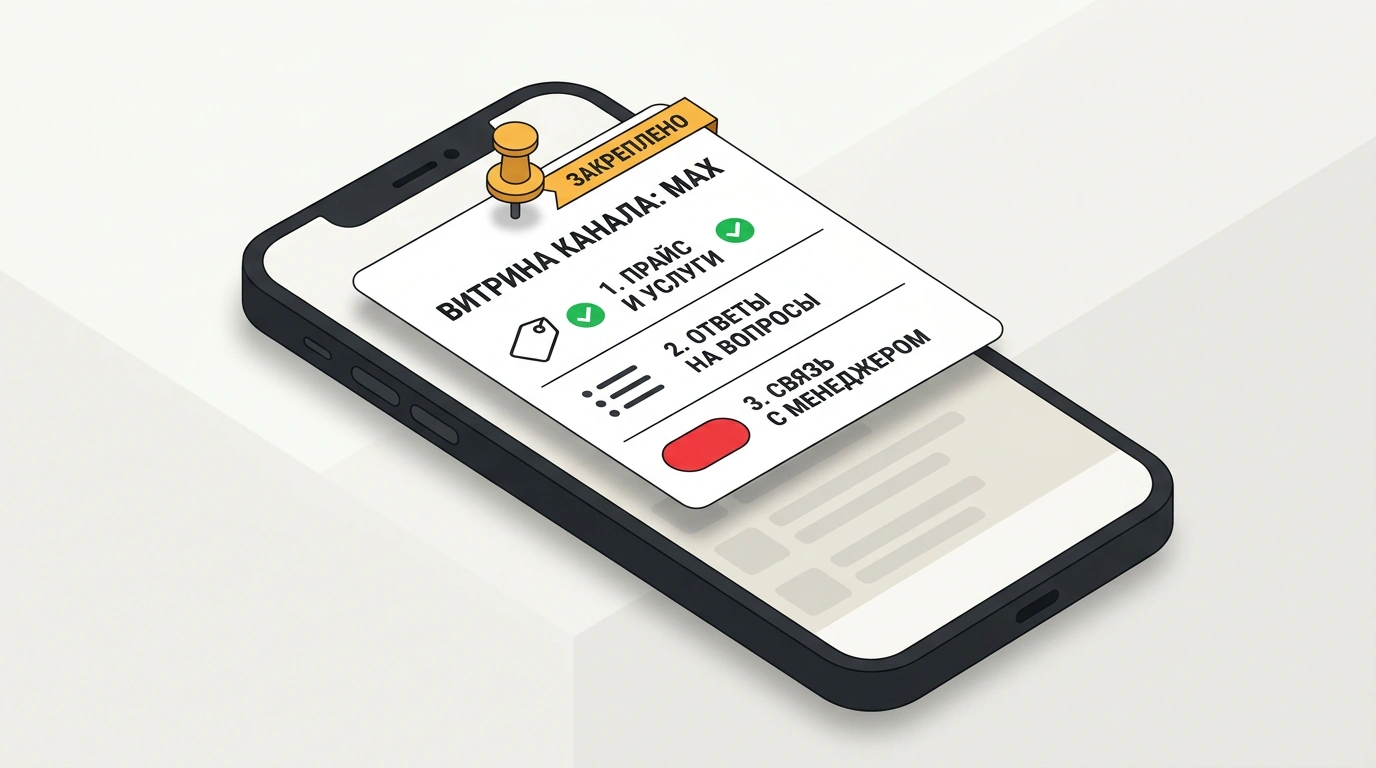
A new subscriber opens your Max channel and finds your price list, hours, and booking contacts within ten seconds. Nobody scrolls two months back or floods your DMs with basic questions. One smartly set up pinned message delivers that order — as long as you treat it as a live directory and edit it in place without pushing annoying alerts.
How Pins Work in Groups and Public Channels
In a group chat, a pin keeps team rules or a shared spreadsheet link in plain sight; in a public channel, it acts as a storefront for subscribers and first-time visitors. Only the owner and admins with pinning rights can pin, unpin, or swap messages — regular members won't see the Pin option.
On Android, tap a message; on iPhone, press and hold; on the web version, right-click and choose "Pin." A preview bar appears at the top of the chat, and tapping it jumps straight to the original post.
When pinning, Max gives two choices: "Pin and notify" or silent "Pin" (on web, a checkbox reading "Notify all chat members"). Keep a clear rule here. Loud pins fit urgent updates in a team chat, whereas in a public channel extra push alerts drive users to mute notifications — stick to silent pins for channel directories.
If prices, schedules, or promos change often, edit the pinned post right in the feed without unpinning it. The top bar stays put, readers see updated info, and no second alert goes out. To switch to a brand-new post, simply pin the new one: the old post unpins automatically without a confirmation prompt and stays in the feed. To remove the bar completely, choose "Unpin."
Two Key Limits and Practical Workarounds
Admins naturally ask: "I have a price list, a topic index, and a new promo — do I really have to pick just one?" For now, yes: each chat or channel holds only one pin. That said, on October 9, 2026 at the Digital Solutions forum, Max CEO Farit Khusnoyarov announced multi-pins coming soon, along with threads in Q1 2027 and channel Stories.
Until that update lands, use a single hub post. Write a brief welcome followed by links to key posts: services, case studies, FAQs, and your current offer. When a new promo launches, just update that line inside the same post.
The second limit hits client negotiations: private DMs in Max have no pins at all. If a client sends billing details or approves a design in DMs, you can't pin that message at the top.
The workaround is forwarding to Favorites — your private cloud chat with yourself (found in Chats or via Profile → Favorites). The other person receives no alert, and your copy stays safe even if they delete the original. You can drop text, photos, videos, links, and files up to 4 GB into Favorites, and Max call recordings land there automatically too. To keep it handy, pin Favorites near the top of your main chat list, where Max lets you pin up to five chats.
Keep one safety line in mind: Favorites works great for briefs, links, and client agreements, yet never store passwords or bank logins there. It is a standard cloud chat, not an encrypted vault.
Why the Pin Button Disappeared
If "Pin" is missing from the menu, the cause is almost always chat type or permissions rather than an app bug.
What to Check If You Cannot Pin a Message
- You are in a group chat or public channel, not a private DM (DMs do not support pins).
- Your account is the owner or an admin with permission to pin messages.
- The post is already published — scheduled posts in the queue cannot be pinned.
- Your Max app is updated to the latest version.
If everything checks out and the button is still missing, restart Max or your device and confirm your role permissions with the channel owner. If that fails, contact support.