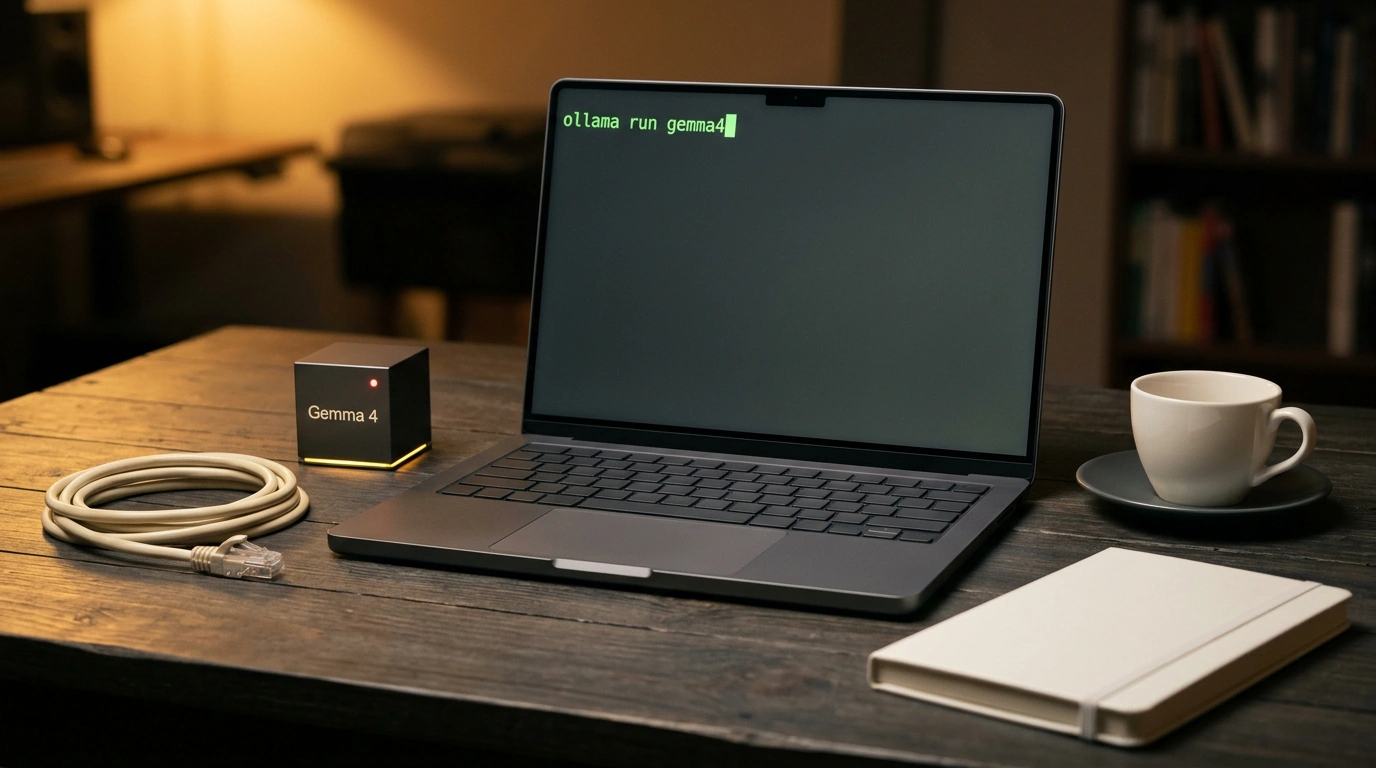
Running an autonomous AI agent on a standard 16 GB RAM laptop—organizing files, writing briefs, or triaging tickets with zero outbound connections and zero token bills—is now natively supported in the Google Antigravity SDK. You install the google-antigravity package, spin up a local Ollama server with open Gemma 4, and set a proper context window. No API keys, no daily quotas, and no nervous glances at a billing dashboard.
What Changed in the SDK and the Three Problems It Solves
Previously, the Antigravity SDK (a Python toolkit built on the engine behind the Antigravity desktop app) lived strictly in the cloud via the Gemini API or Vertex AI. In practice, that quickly runs into three familiar walls.
First is quotas and cost. Point an agent at server logs or client notes, and by lunch you hit a rate limit or a bill for millions of input tokens. A local model runs for free as long as your laptop is on. Second is privacy. Proprietary code, emails, and internal docs often cannot leave your machine under company security rules. Third is action control. An autonomous bot with terminal access can do real damage if it isn't sandboxed. The SDK already includes google.antigravity.hooks.policy: you can block everything with deny("*"), open only a single working folder (workspaces), and require approval before any shell command runs.
Announcement banner for local AI model support in Google Antigravity SDK with LiteRT-LM (Source: developers.googleblog.com)
Under the hood, the SDK keeps a clean structure: Agent manages tools and policies, Conversation tracks the session, and ConnectionStrategy wires everything to the model. In version 0.1.24, Google added two local configuration classes so you don't have to rewrite your agent logic:
LiteRTAgentConfiguses Google's built-in AI Edge LiteRT-LM engine. It loads.litertlmfiles directly on GPU, CPU, or NPU without external servers. Officially tuned for the MoE model Gemma 4 26B A4B (26B total and 4B active parameters), it requires over 24 GB of VRAM or unified memory.LocalOpenAIAgentConfigconnects to any local OpenAI-compatible server: Ollama, LM Studio, or vLLM. For a standard 16 GB laptop, this is the go-to option.
Another handy addition is the .lightweight() method. Cloud agents carry long system prompts, dozens of tools, and subagents that quickly overwhelm small models. The .lightweight() preset trims the prompt, keeps core tools, disables subagents, and tunes context compaction for local hardware. LiteRTAgentConfig enables it automatically, while Ollama setups need to call it explicitly.
Connecting Ollama and Gemma 4 E4B: Setup, Code, and the 64K Trap
On a 16 GB RAM laptop, pick the compact Gemma 4 E4B (4.5B effective and 8B total parameters with embeddings). Before running your script, though, watch out for the biggest local-agent pitfall.
Google recommends a 64,000-token context window for local agents. The catch is that the OpenAI-compatible API does not pass the num_ctx parameter. By default, Ollama may silently load the model with a 4K–32K window. The agent reads a couple of files, fills memory with step history, and either cuts off or loops.
Always set OLLAMA_CONTEXT_LENGTH=64000 (or build a custom Modelfile with PARAMETER num_ctx 64000) before starting the server. You can verify the actual allocated window anytime with ollama ps.
# Pull compact Gemma 4 E4B for a 16 GB RAM laptop
ollama pull gemma4:e4b

# Set a 64K context window before starting the server
export OLLAMA_CONTEXT_LENGTH=64000
ollama serve
Next, install the SDK from PyPI. While the Python wrapper is open-source on GitHub under Apache 2.0, cloning the repo won't give you the compiled runtime binary—it ships inside the wheel, so install via pip in a virtual environment.
# Create a virtual environment and install the SDK with its runtime
python3 -m venv .venv
source .venv/bin/activate
pip install google-antigravity
Now build a minimal offline agent with LocalOpenAIAgentConfig. Start by blocking everything with deny("*"), then allow reading and writing files strictly inside a dedicated folder.
import asyncio
import os
from google.antigravity import Agent, LocalOpenAIAgentConfig
from google.antigravity.hooks.policy import allow, deny

# Isolate the agent in a dedicated workspace folder
WORKSPACE = os.path.expanduser("~/agy-local-workspace")
os.makedirs(WORKSPACE, exist_ok=True)


async def main():
    # Connect Ollama with Gemma 4 E4B and the lightweight preset
    config = LocalOpenAIAgentConfig(
        model="gemma4:e4b",
        base_url="http://localhost:11434/v1",
        workspaces=[WORKSPACE],
        policies=[
            deny("*"),
            allow("view_file"),
            allow("write_to_file"),
        ],
    ).lightweight()

    async with Agent(config) as agent:
        prompt = (
            "Read the notes in this folder and save "
            "a short plan to brief.md."
        )
        response = await agent.chat(prompt)
        async for token in response:
            print(token, end="", flush=True)


if __name__ == "__main__":
    asyncio.run(main())
If the agent needs shell access, add ask_user("run_command", handler=...) to policies so the script pauses for confirmation. On a workstation with more than 24 GB of memory, you can run pip install litert-lm, pull gemma-4-26B-A4B-it-gpu.litertlm, and switch to LiteRTAgentConfig(model_path=...) without rewriting the rest of your code.
Hybrid Mode: Cloud Planning Without Seeing Your Source Code
Full offline mode handles routine chores well, yet on complex tasks a small model can struggle to break the work into clean steps. For that, the SDK showcases a hybrid Architect-Builder pattern.
The cloud model acts strictly as the "architect": it receives the task description and a bare list of filenames, with zero lines of source code. From those filenames, the cloud drafts a subtask plan, while your local model handles all actual file reads, bug hunting, patches, and tests on your GPU. In Google's official demo, this setup ran a security audit across three Python modules (auth.py, billing.py, database.py): cloud Gemini 3.8 Flash built the plan, and local Gemma 4 26B reproduced the vulnerabilities, wrote fixes, reviewed them, and ran regression tests.
Token split in Google's hybrid audit (Architect-Builder)
This pairing resolves the core tension between cloud-model intelligence and strict privacy. Source code never leaves your machine, and your cloud API bill shrinks to fractions of a cent because only a short task skeleton goes outside.
Limits on 16 GB RAM and Three Rules for Reliable Runs
Don't expect a local laptop model to match the speed or sharpness of cloud flagships. On 16 GB of RAM, a real agent task on gemma4:e4b (such as summarizing notes into a brief or sorting a batch of tickets) takes 2 to 3.5 minutes. That's fine for background automation, though it feels slow in interactive chat. In complex multi-step coding, compact E4B also trails the larger models in the family, which need over 24 GB of memory.
| Ollama Model | Disk Size | Context | LiveCodeBench v6 | Target Hardware |
|---|---|---|---|---|
gemma4:e4b | 6.6–9.5 GB | 128K | 52.0% | 16 GB RAM laptop |
gemma4:26b (MoE 4B active) | 16–19 GB | 256K | 77.1% | Workstation >24 GB VRAM / Unified |
gemma4:31b (Dense) | 19–20 GB | 256K | 80.0% | Workstation >24 GB VRAM / Unified |
The SDK itself still has rough edges: version 0.1.24 is evolving fast, and Google explicitly warns that for LiteRTAgentConfig, only gemma-4-26B-A4B-it-gpu.litertlm works predictably right now—other .litertlm builds may crash or fail to start.
To make a local 16 GB agent finish its work reliably, stick to three simple rules. First, give each agent its own workspaces directory so it doesn't get confused by unrelated files. Second, follow "one agent, one clear task" with exact output filenames in your prompt—dumping five requests on a small model at once usually means it finishes two and forgets the rest. Third, keep approval policies and a kill switch on any external actions, since local models make mistakes more often than cloud flagships.