If you've administered Linux servers or deployed backend apps for even a couple of years, crontab syntax is probably burned into your muscle memory. Those famous five asterisks—* * * * *, followed by a shell command or script path—became the universal language of background job scheduling back in the late 1970s, when Ken Thompson wrote the first implementation of cron for Unix Version 7.
For four straight decades, that mechanism did its job honestly: rotating logs, generating nightly database dumps, sending email digests, and cleaning up temp directories. But let's take off the nostalgia glasses for a second and look soberly at how classic cron behaves in modern cloud infrastructure with dozens of microservices, distributed storage, and containers.
The picture is, to put it mildly, grim. Linux distributions built on systemd (Ubuntu, Debian, RHEL, CentOS, Rocky Linux, Fedora, Arch Linux, openSUSE) have shipped a full-featured native alternative for over a decade: systemd timers. Yet out of habit, hundreds of teams keep stepping on the same crontab rakes.
An in-depth educational breakdown of the mechanism was published in the «Linux | Network | DevOps» channel, drawing on the official systemd.timer manual and the systemd.time specification. It's time to dissect this subsystem from the ground up and understand why modern production deserves better than archaic lines in /etc/crontab.
Why Four Decades of cron Hit an Architectural Dead End
Let's dissect a real incident every on-call engineer has faced. Imagine a server configured for a nightly PostgreSQL database dump at 03:00. At three in the morning, the cron daemon fires the command. At that exact minute, an NFS network share happens to be remounting, or the database service is restarting after a scheduled package update.
What happens in the world of classic cron?
- Silent failure and lost logs: the script exits with an error to stderr. Where does that output go? By default, cron tries to send local mail via
sendmailormailxto root. On modern servers, a local MTA is either not installed at all, or emails pile up for years in/var/mail/rootwhere nobody ever looks. As a result, no backup was created, and the team only finds out two weeks later when the database crashes and there's nothing to restore. - Blindness to reboots and maintenance windows: if a physical server or VM happened to be rebooting right at 03:00, cron simply ignores the missed event. Is it 03:05 now? Time's up, the train has left—no backup until tomorrow night.
- Zero resource controls: a job launched by cron spawns as an ordinary child process in the general user space. If the script hits a memory leak or an infinite loop, it eats 100% CPU and gets the production app killed by the Out-Of-Memory Killer.
- No way to declare dependencies: crontab has no declarative way to say, "Don't start this script until the network is up, the disk is mounted, and the database responds to ping." Engineers end up cobbling together bash hacks with endless
sleeploops and port checks.
In the systemd paradigm, all of these problems are solved at a fundamental architectural level.
Paired Unit Architecture: Strict Separation of Schedule and Process
The main conceptual difference between systemd and cron is a strict separation of responsibilities.
Infographic blueprint of systemd's architectural separation of tasks into independent paired .service and .timer files.
In cron, the launch schedule and the command itself are crammed into a single unreadable line. In systemd, a periodic task is always split into two independent unit files:
- Service unit (
.service): answers WHAT TO DO. It describes the actual workload: executable binary, script, working directory, system user, environment variables, memory limits, filesystem permissions, and failure behavior; - Timer unit (
.timer): answers WHEN AND UNDER WHAT CONDITIONS TO RUN. It defines time intervals, clock or boot event bindings, and catch-up rules for missed runs.
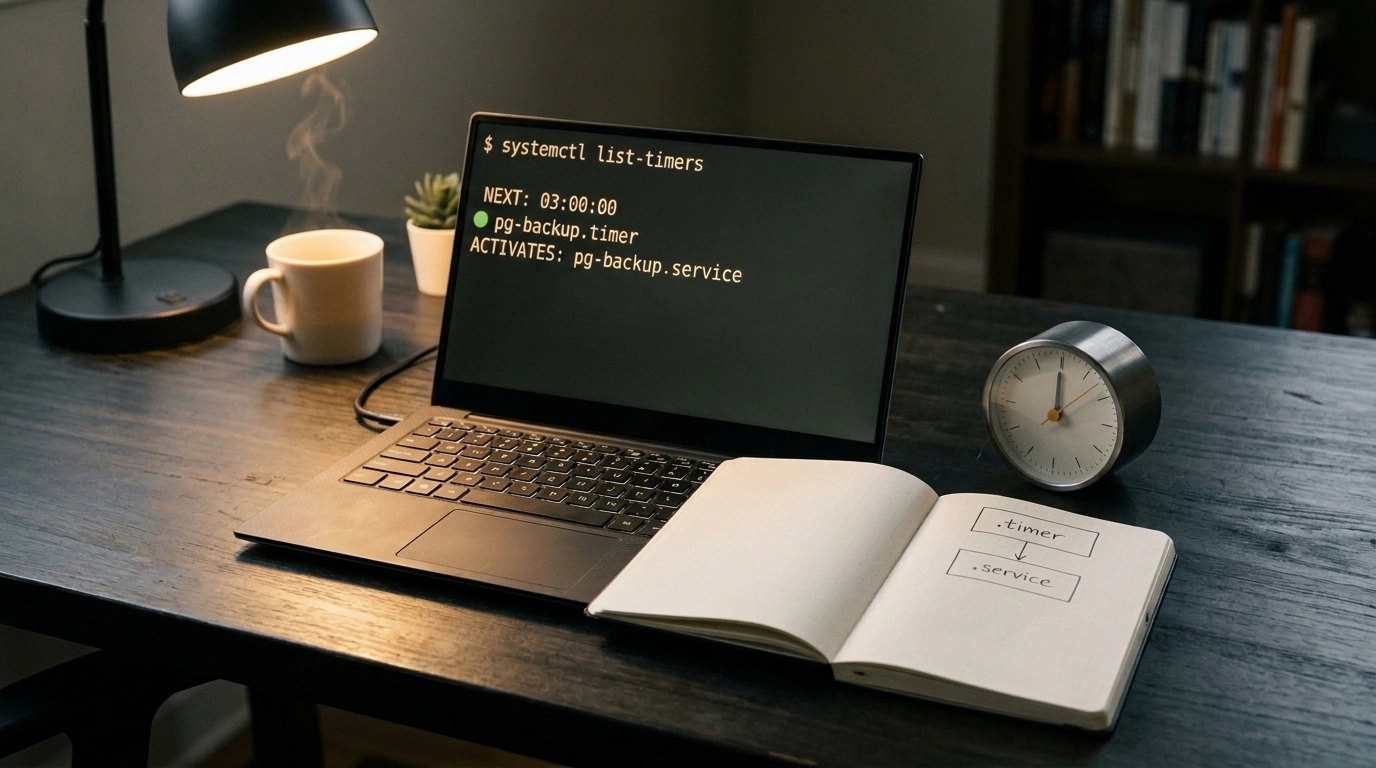
By default, a timer looks for a same-named service: if the unit is called pg-backup.timer, systemd automatically activates pg-backup.service in the same directory.
Let's look at a reliable service unit for a one-off task. Notice Type=oneshot:
# /etc/systemd/system/pg-backup.service
[Unit]
Description=PostgreSQL backup to local archive
# Declarative dependencies: wait for network and local DBMS service
After=network-online.target postgresql.service
Wants=network-online.target postgresql.service

[Service]
Type=oneshot
User=postgres
Group=postgres
WorkingDirectory=/var/lib/postgresql
ExecStart=/usr/local/bin/backup-database.sh

# Logging: all stdout and stderr go straight to journald
StandardOutput=journal
StandardError=journal

# Hard cgroups v2 limits: protect neighboring services
MemoryMax=2G
CPUQuota=50%
Now we create the paired timer that manages this service's schedule:
# /etc/systemd/system/pg-backup.timer
[Unit]
Description=Nightly database backup timer

[Timer]
# Calendar schedule: every night at 03:00 sharp
OnCalendar=*-*-* 03:00:00

# The real magic: catch up on missed runs if the server was off at 03:00
Persistent=true

# Random jitter: spread peak disk load across a 15-minute window
RandomizedDelaySec=15m

[Install]
# Timer activates when the base timers system target starts
WantedBy=timers.target
To bring the schedule to life, just run the standard initialization commands:
# Reload systemd configuration and enable the timer
systemctl daemon-reload
systemctl enable --now pg-backup.timer
Monotonic vs. Calendar: How Timers Work with the Kernel and Clocks
In classic cron, every schedule is rigidly tied to the system's wall clock. If the server's clock drifts out of sync or a sysadmin manually sets the time back an hour, cron can either fire twice or skip a run altogether.
Systemd cleanly separates timers into two fundamentally different classes:
1. Monotonic Timers
These are tied not to wall-clock time, but to the Linux kernel's monotonic hardware clock (CLOCK_MONOTONIC). This clock ticks strictly forward from CPU boot; it cannot be turned back or thrown off by a bad NTP packet.
Monotonic timer directives are ideal for periodic interval tasks:
OnBootSec=15min: start the service exactly 15 minutes after the OS kernel boots;OnUnitActiveSec=1h: repeat every hour relative to the previous successful activation of the service;OnUnitInactiveSec=30min: wait a 30-minute pause after the previous process finishes.
Feel the huge difference: if your heavy cache-cleanup job took 40 minutes to run, OnUnitInactiveSec=30min guarantees the next run starts exactly 30 minutes after the previous one ends—preventing dangerous process overlap without any external lock files!
2. Calendar Timers (Realtime / Calendar Timers)
These run on wall-clock time (CLOCK_REALTIME) and are configured via OnCalendar.
The systemd.time specification syntax is orders of magnitude more expressive and human-friendly than cron's five columns:
OnCalendar=hourly— every hour at minute zero;OnCalendar=daily— every midnight at 00:00:00;OnCalendar=Mon..Fri *-*-* 04:30:00— weekdays only, Monday through Friday at 4:30 AM;OnCalendar=*-*-01 02:00:00— the first day of every month at 2:00 AM;OnCalendar=*-*-* *:00/15:00— every fifteen minutes of every hour.
Notice how asterisks are separated by hyphens and colons. Making a mistake in this syntax is ten times harder than in cron's sea of space-separated numbers.
Anatomy of Persistent=true: Catching Up on Nightly Backups After Outages
One of cron's most destructive flaws has always been its total amnesia across reboots. If a VM with a dev or staging environment is shut down overnight to save resources, morning backup jobs simply never run.
In systemd, a single directive solves this elegantly:
Persistent=true
Let's look under the hood at what happens when this flag is enabled:
- On every successful run of the target service, the systemd manager grabs the current timestamp and atomically writes it to a stamp file on disk at
/var/lib/systemd/timers/stamp-<unit-name>.timer. - If the server was powered off at 03:00, stuck in an emergency reboot, or undergoing hypervisor host migration, the stamp file preserves yesterday's start time.
- As soon as the server boots (say, at 08:30 AM), systemd reads all stamp files from disk while initializing
timers.targetand compares them against the calendar. - Seeing that the 03:00 schedule was missed, systemd immediately activates the overdue
pg-backup.servicewithout waiting for the next night.
This mechanism guarantees that critical maintenance routines execute at least once per scheduled period, even if the server reboots regularly.
Transparent Inspection: systemd-analyze and Diagnostics Without Third-Party Calculators
How many times before saving a crontab have you jumped onto online tools like crontab.guru to double-check that your asterisks are right and the script won't fire every two seconds instead of two in the morning?
Systemd ships with built-in professional diagnostics. Any calendar expression can be verified straight in the terminal using systemd-analyze calendar:
# Validate a complex calendar expression before adding it to a config
systemd-analyze calendar "Mon..Fri *-*-* 03:00:00"
The command returns a comprehensive report:
Normalized form: Mon..Fri *-*-* 03:00:00
   Next elapse: Fri 2026-11-06 03:00:00 MSK
      (in UTC): Fri 2026-11-06 00:00:00 UTC
      From now: 13h left
The utility shows the canonical normalized form, converts the time to UTC, and tells you how many hours and minutes remain until the next trigger.
And to see the complete picture of every scheduled task on the server, simply run:
systemctl list-timers --all
The command outputs a crystal-clear table with columns:
- NEXT: exact date and time of the next trigger;
- LEFT: time remaining until launch (e.g.,
2h 45min left); - LAST: when the task last ran;
- PASSED: how much time has elapsed since the previous run;
- UNIT: name of the active timer unit;
- ACTIVATES: name of the service that will be invoked.
No magic, no hidden user crontabs buried in /var/spool/cron/crontabs—the entire scheduling infrastructure is visible at a glance in one unified interface.
Resource Isolation with cgroups v2 and One-Off Tasks via systemd-run
Another massive trump card in systemd is strict hardware resource control via kernel control groups v2 (cgroups v2).
In classic cron, a launched script runs with zero limits. If a junior engineer writes a report-export script and forgets to bound a SQL query, the process can allocate 30 GB of RAM and take down a neighboring production cluster.
In a systemd service unit, we can add hard isolation directives:
[Service]
# Cap memory usage: hard ceiling of 2 GB
MemoryMax=2G
# Throttle memory allocation above the 1.5 GB threshold
MemoryHigh=1.5G
# Cap CPU time: no more than one core (100%)
CPUQuota=100%
# I/O priority: backup job shouldn't stall the disk
IOWeight=100
If the process tries to exceed MemoryMax, the kernel cleanly kills only the script's child process while keeping the main system alive. And the entire execution trail and errors are neatly captured in the system journal:
# Read detailed execution logs for a specific task since yesterday
journalctl -u pg-backup.service --since "yesterday"
What if you need to run a temporary one-off task without manually creating files on disk? For that, there's the awesome systemd-run command:
# Run a heavy script in 20 minutes inside an isolated context with a memory cap
systemd-run --on-active=20m --property=MemoryMax=1G /usr/local/bin/heavy-maintenance.sh
The utility automatically generates a transient unit in memory, executes the command, and cleans up the definition once it finishes.
Practical Migration Checklist and Production Trade-offs
Moving from crontab to systemd timers isn't just swapping tools—it's a qualitative leap in server infrastructure maturity. Let's lock down the core migration steps:
- Inventory legacy jobs: inspect
/etc/crontab,/etc/cron.d/, and user schedules viacrontab -l. - Create templates: build baseline service units in
/etc/systemd/system/, explicitly specifying working directories, system users, and declarative dependencies (After=network-online.target). - Configure calendars and jitter: for tasks running across multiple servers in parallel, always set
RandomizedDelaySec=10m. This prevents simultaneous bombardment of external APIs or disk arrays (the thundering herd problem). - Validate with systemd-analyze: run every schedule through the calendar analyzer before enabling it.
Naturally, systemd timers come with a trade-off: instead of editing one text file in nano, you have to create two separate unit files. But in production, that slight verbosity pays for itself many times over in transparency, reliable logging, and the guarantee that your nightly jobs actually run as expected.