You open a hundred-row spreadsheet, ten search tabs crowd your browser, and your cursor hovers over an empty column. When AI-powered autofill arrived in Google Sheets in April 2026, tedious copy-pasting seemed over. Yet the moment the algorithm dropped a plausible-looking figure into a cell, a nagging question popped up: where did it come from, and did the model make it up?
Checking every single row in search by hand erases all the speed gains, while handing a raw summary to a client is risky. In the October 28, 2026 Google Sheets update, that dilemma was solved: Fill with Gemini and the =AI() formula gained interactive web citations (Sources) for every populated cell.
The Black-Box Trap and Moving to Spot Checks
In chat, an AI hallucination is easy to catch from the phrasing, but in a spreadsheet a single invented headcount or founding year silently breaks reports. Previously, you had to either trust the entire sheet blindly or Google every row yourself.
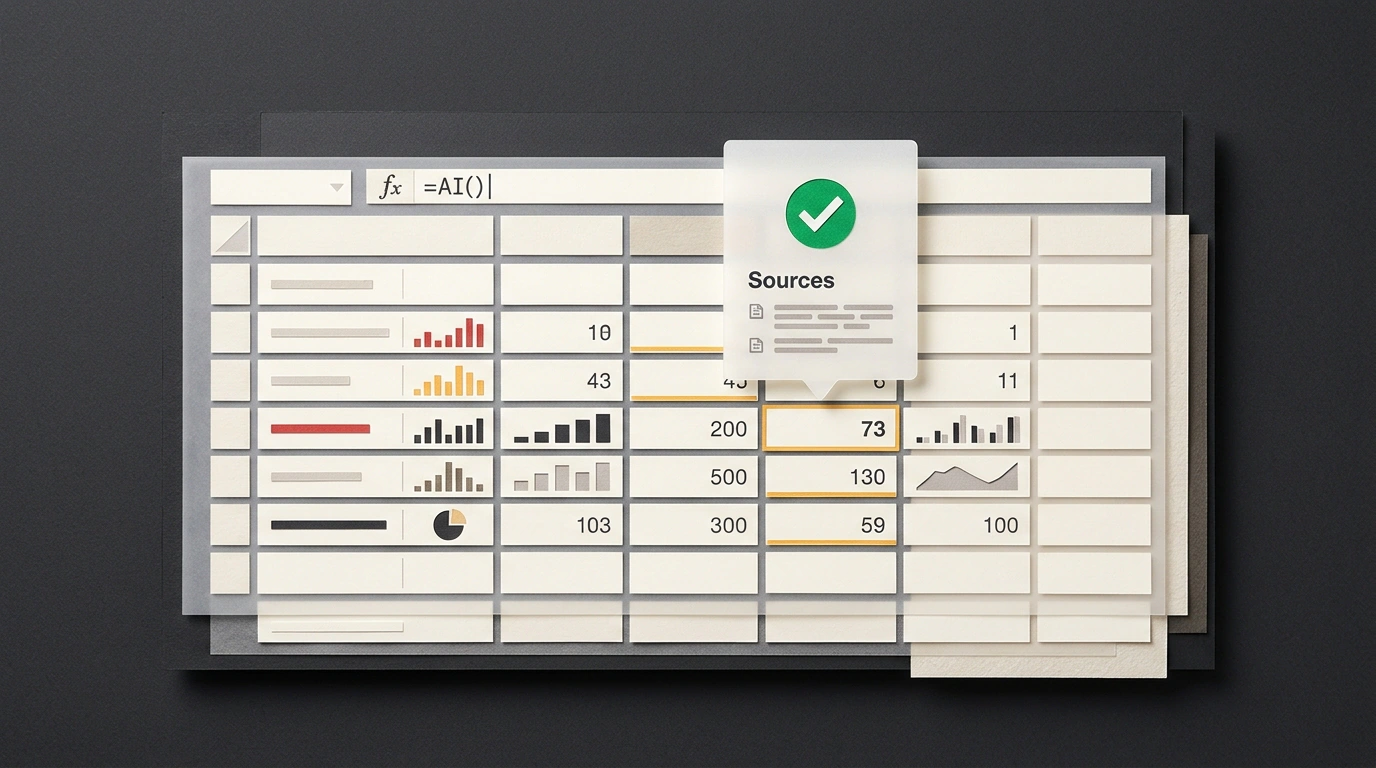
The Google Workspace team demonstrated the new mechanics on an Expansion Market Research sheet: the first column lists US cities (Austin, Raleigh, Boise, and Nashville), and the headers ask for state, population, median age, and leading industry. When Gemini fills them from Google Search, links are attached not as a single list at the bottom of the file, but individually to each cell (cell-level citations). That detail is what stood out to me in this release: even if the model fills 200 cells at once, you shift from exhaustive auditing to a quick spot check, opening sources in key rows in seconds.
Pop-Up Sources and =AI() Formula Syntax
I checked the official Google Workspace help center: to view citations in the browser, you click a cell, hover over the text, and press Sources to open the list of Google Search pages. You can trigger generation by dragging the fill handle from the first sample cell or by running Fill with Gemini on an empty range. Under the hood, this UI calls the =AI(prompt, range) function (or =GEMINI), which works right alongside VLOOKUP and SUM.
Suppose cell A2 holds a company name for which you need the founding year and headquarters city, while B2 contains a customer review to sort by issue and sentiment:
# Extract verifiable facts about a company from Google Search
=AI("Find the official founding year and headquarters city in format: Year, City", A2)

# Automatically classify customer review sentiment
=AI("Identify the issue category (delivery, quality, billing) and sentiment (positive/negative)", B2)
In the first formula, the quoted text sets the output format and A2 passes the company name: Gemini searches Google, fills in the year and city, and attaches a Sources chip linking to the organization's site. In the second line, B2 feeds the review text to the model for in-sheet classification. Once you verify the first row, you simply drag the fill handle down the column.
Scaling to 3,000 Cells, 55x Speedup, and Hidden Limits
In Google's internal benchmark (95 participants, a 500-cell sheet), the updated Fill with Gemini ran up to 55 times faster than manual entry (up from a 9x speedup on 100 cells in April). The batch limit expanded to 3,000 cells per request, which pairs nicely with Google Sheets Canvas panels to speed up analytics workflows. The feature is rolling out from October 20 (over up to 15 days) across Workspace Business/Enterprise Standard and Plus, Google AI Pro/Ultra, AI Pro for Education, and AI Expanded Access when Smart features, web search, and one of 19 supported languages are enabled.
When running it, watch out for six limits from the =AI() documentation:
- Context isolation: the function sees only the current sheet's cells referenced in the formula, cannot read files in Drive, and blocks restricted medical categories.
- 350-cell threshold: when selecting an array with
=AI(), the first 350 cells generate in one pass before the next batch runs. - Text-only output: responses return strictly as plain text strings.
- No
Ctrl+Z: Undo/Redo cannot revert an=AI()result—you have to regenerate the cell. - 24-hour quotas: unlike Coefficient, Numerous.ai, Formula Bot, or Copilot for Excel, hitting Workspace rate limits triggers a timeout, and exceeding the long quota enforces a 24-hour cooldown.
- Eyes-on verification: a link in
Sourcesdoes not eliminate hallucinations—it gives you a fast way to verify the source.
Before you drag autofill down hundreds of rows, ask yourself: did you pass the data column reference into the formula, and did you open Sources on three key cells in the first ten rows to confirm the AI is pulling facts from official sites? Thirty seconds of checking saves your quota and protects your report from errors.