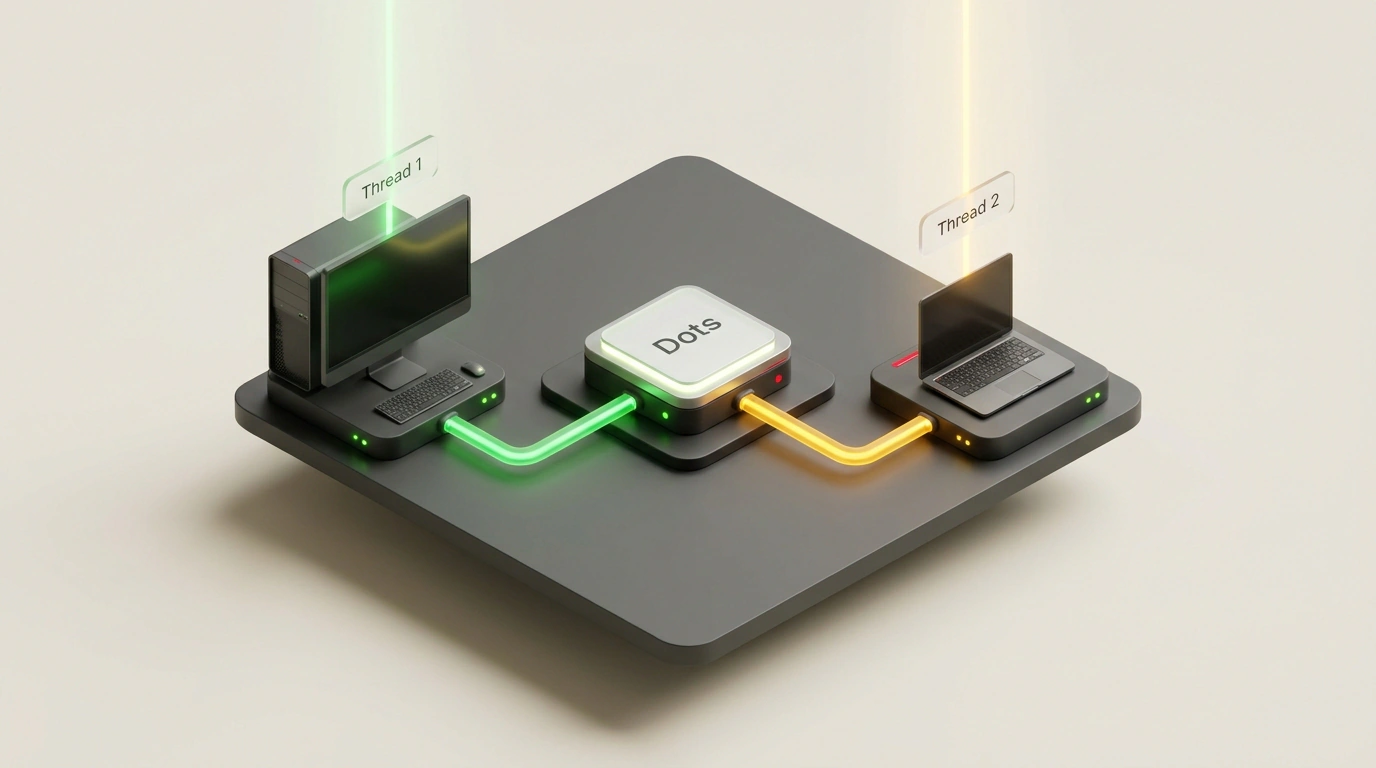
When you need an autonomous AI agent to do real work—build a project, click through a fresh UI layout, or run tests—you usually face two awkward choices. Either you lock the assistant inside a sterile cloud sandbox with no access to a local GPU and packages, or you let it onto your main computer and watch the algorithm hijack your mouse cursor in the middle of the workday.
In the November 9 ChatGPT update, OpenAI removed the restriction that forced that tradeoff: background OpenAI Dots agents powered by GPT-6 Astra are no longer tied to a single device. I reviewed the release rules: you can now connect an entire pool of spare computers at home or in the office to one agent so it distributes tasks across them without occupying your primary screen.
From Cloud Sandbox to Home-Hardware Dispatcher
When developers unveiled persistent background Dots agents at DevDay on September 29, each agent received its own cloud micro-computer with a browser that persisted between chat sessions. Local hardware access was disabled by default, and when turned on manually, rules allowed binding strictly one physical machine per agent.
With that cap lifted—announced by OpenAI engineer Thibaut and covered by Julian Goldie in his update breakdown—the agent turns into a distributed environment dispatcher. Picture your Dot on GPT-6 Astra as a technical project manager: previously it had one desk in the cloud and at most one in your room, whereas now you give it access to every spare computer you own.
Suppose you connect a work MacBook and a home desktop PC with a beefy GPU (or a second Mac) to the agent. The cloud dispatcher assigns tasks according to each machine's hardware: heavy builds or Xcode compilation stay on the desktop, while the laptop handles documentation checks, tests on an older SDK version, and clicking through new UI layouts with error screenshots. While the spare machine does the work, your cursor and screen remain free.
How to Connect a Device Pool and Avoid the Permissions Trap
You can't assemble this cluster from a smartphone—you have to physically sit at each computer you're adding and approve access in the ChatGPT desktop app for macOS or Windows. Inside the Dot agent's profile, open Computers, find the current machine, click Allow, and confirm with Allow access. Once paired, you can manage the pool from anywhere—even from your phone on the commute home.
Here lies a trap that trips users up often. It's tempting to think: "I already linked my laptop to Codex and turned on WorkSync, so my Dot will automatically see the machine." In reality, Codex and WorkSync permissions do not carry over to Dots. Access for each agent lives in an isolated perimeter inside its profile, backed by granular permissions for specific filesystem folders.
The Single-Thread Rule and Security Boundaries
Another misconception involves performance: headlines about "controlling multiple computers" make it sound as if a Dot merges a desktop and a laptop into one supercomputer to speed up a single job. In practice, a strict rule applies: one active task runs on one computer at a time. For the desktop to build the project while the MacBook simultaneously checks UI layout and docs, you must instruct the agent to launch a separate thread for each machine—one thread per device.
Each computer must also stay online with the ChatGPT desktop app open; if a machine goes to sleep, the agent temporarily skips it while keeping the pairing intact. Because autonomous background agents can still make mistakes, avoid granting full admin (sudo) rights to system directories, review submitted screenshots and code edits, and revoke access for any individual machine instantly via Revoke access in the Dot profile. The feature is rolling out at no extra charge on ChatGPT Pro (excluding EEA countries, Switzerland, and the UK), Business Premium, and Enterprise (once enabled by an admin).
Lifting the single-device limit turns spare home and office computers into a coordinated fleet of background workers, splitting heavy builds and UI checks across separate threads on different machines while leaving your main screen free for real work.