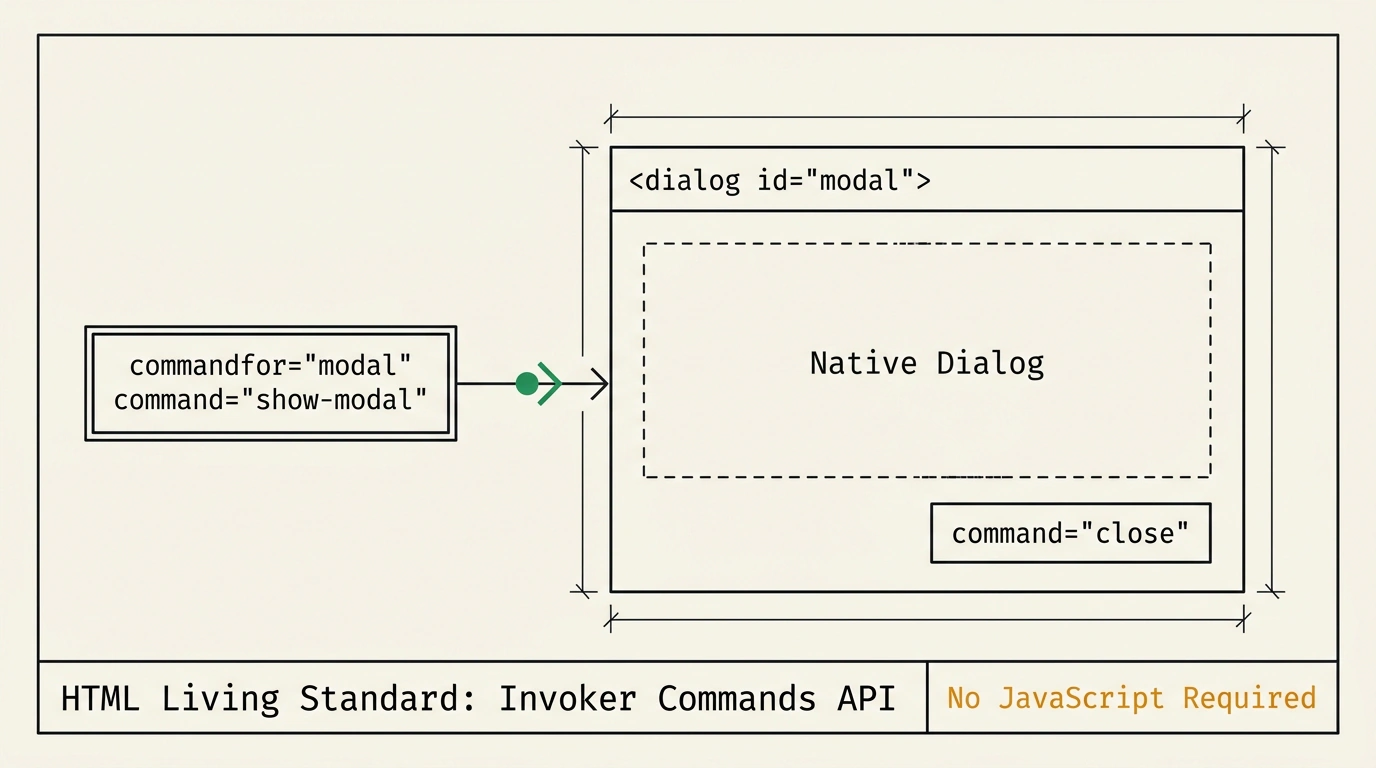
At first glance, opening a modal window on a web page without JavaScript sounds impossible. You immediately picture the old ritual: grab the button and <dialog> with querySelector, attach a click listener, call showModal(), and repeat the whole thing to close it. That really was the routine for years. Now the HTML Living Standard includes the Invoker Commands API, moving all that basic wiring straight into button attributes.
What Changed Compared to Classic JS
Even a simple confirmation modal used to mean writing boilerplate JavaScript:
// Old approach: wiring elements together manually
const openBtn = document.querySelector('#open-btn');
const closeBtn = document.querySelector('#close-btn');
const dialog = document.querySelector('#confirm-dialog');

openBtn.addEventListener('click', () => dialog.showModal());
closeBtn.addEventListener('click', () => dialog.close());
A real app often has a dozen modals like this. You end up tracking listeners and keeping button-to-dialog links hidden in a separate JS file. Looking at the HTML markup alone doesn't tell you what a button does.
With the Invoker Commands API, the link lives right in HTML. You give a <button> two attributes: commandfor with the target element's id, and command with the action. The button works like a TV remote: commandfor pairs the remote to the screen, and command picks which button to press. You don't need any script to open or close the modal.
How show-modal, close, request-close, and Custom Commands Work
The standard builds three commands in for <dialog>. First, show-modal mirrors dialog.showModal(): it promotes the dialog to the browser's top layer and renders the ::backdrop. That top layer sits above the rest of the document like a sheet of glass, so someone else's header with z-index: 9999 won't cover your modal. If the dialog is already open, clicking again won't break anything.
Two commands handle closing, and the difference matters for forms:
command="close"shuts the dialog immediately (just likedialog.close()).command="request-close"politely asks to close (likedialog.requestClose()): it fires acancelevent on the dialog first. If a form has an unsaved draft, you can listen forcancel, callevent.preventDefault(), and stop it from closing.
Try both buttons in the live sandbox below.
Live Example: Modal dialog Using commandfor and command
The browser handles accessibility automatically too: show-modal moves focus inside the dialog, Esc closes it, and closing returns focus to the trigger button. Screen readers recognize the relationship without manual aria attributes.
The same attributes also control popovers via toggle-popover, show-popover, and hide-popover, replacing the narrower popovertarget and popovertargetaction. For custom behavior, you can invent commands prefixed with --, like command="--copy-code": clicking fires a command event (CommandEvent) on the target element for your JS to handle.
Browser Support and Where You Still Need JS
The Invoker Commands API has reached Baseline Newly Available status. That means it works across all modern engines—Chrome, Edge, Firefox, and Safari—though it hasn't hit the 30-month mark for Widely Available yet. Older iOS devices and locked-down enterprise browsers may not support it.
The fallback check in the sandbox above covers that: 'commandForElement' in HTMLButtonElement.prototype. If the property is missing, you wire up showModal() and close(). Modern browsers skip that code completely.
There are two honest limits to keep in mind. commandfor only works on <button> elements, not on <a> or <div>. And you still need JavaScript if you must fetch data before opening, guard unsaved forms on cancel, or handle custom --* commands. Still, for everyday confirmations, the extra JS disappears completely.