If you build frontends with AI code editors, explaining routine UI tweaks quickly turns into a chore. You spin up the local dev server, spot a misaligned button margin, and head to the assistant chat. Then the grind begins: hunting through DevTools for the exact file path like src/components/Dashboard/MetricsCard.tsx, copying Tailwind classes, and writing a prompt: "Find the third blue button in the second column and increase its bottom margin."
The model peers at your project through the narrow slit of text files. Blind to the rendered output, it mixes up components, tries to rewrite globals.css instead of the local block, or breaks the neighboring grid. Writing prompts and rolling back bad diffs eats up hours.
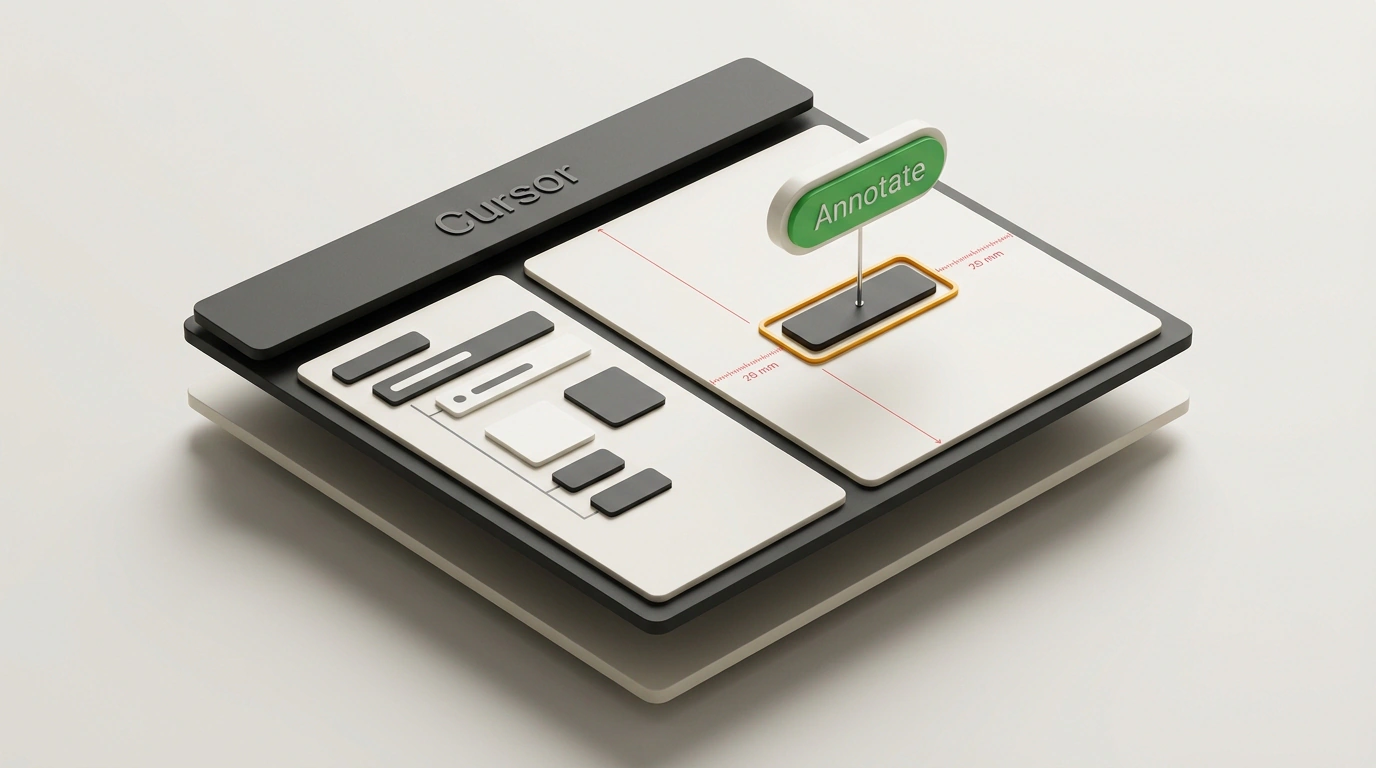
The Cursor team set out to close that gap. An editor update introduced Annotate, built into Design Mode. It's an interactive bridge linking the visual preview window directly to Composer's context engine. Let's look at how it works under the hood, what workflows it unlocks, and where the catches are.
Design Mode: An Interactive Bridge Between Browser and Composer
You toggle the mode with Cmd + Shift + D on macOS or Ctrl + Shift + D on Windows and Linux. The built-in preview turns into an interactive canvas: Cursor injects a lightweight overlay that tracks cursor position and element coordinates without disrupting client-side JavaScript.
Developers no longer ping-pong between Chrome DevTools and the editor. You interact with the live UI directly inside the IDE. Every visual gesture translates not into raw pixel coordinates, but into structured metadata.
When you click any block on the page, the system maps the DOM node to the project's abstract syntax tree (AST). Composer's context automatically receives:
- Exact file path of the component on disk;
- Line range in source code where the target JSX or HTML element is declared;
- Current computed styles and utility library classes;
- Container bounding-box geometry;
- Parent component stack all the way up to the root layout.
The agent gets crystal-clear spatial grounding: no more guessing from text which button you meant.
Six Annotation Mechanics: From Point & Click to Batch Edits
Annotate covers the full spectrum of daily layout work through six core interaction patterns:
- Point & Click. You click a card or button and type in the popup input: "Match the border radius of the profile card and add a hover shadow." The agent pinpoints the component instantly and drafts a surgical patch.
- Box & Draw Markup. When an issue spans multiple blocks, you can drag a box around the region or draw an arrow: "Align these three columns to the baseline and bump the gap to 24px."
- In-Place Text Editing. The fastest way to tweak microcopy and headings. Double-click text in the preview and type the new wording. The agent figures out whether the string lives inline in JSX, in a constant, or behind an i18n key, and updates the right file.
- Style & CSS Inspector. If you don't feel like describing a color or radius in words, the inspector lets you drag spacing sliders or pick a color from a palette. Those values compile into the prompt as exact classes or numeric tokens.
- Voice Annotations. Click an element, hold the mic, and dictate what you want. A speech model transcribes your audio and binds it to the DOM snapshot.
- Batch Edits. A developer can drop 5–10 annotations across a page and hit submit at once. Composer analyzes all markers together, builds a unified refactoring plan, and applies a coordinated diff in one pass.
Architectural Anatomy: How DOM Meets Source Code
Instant code localization rests on three layers of engineering:
First, the system leans on Source Maps. Bundlers (Vite, Next.js / Turbopack) generate maps linking bundle output back to source files in dev mode. The overlay intercepts your click and decodes the file path via sourcemaps.
Next comes component-tree introspection. In React, the inspector reads internal React Fiber Nodes to extract custom component names and props. That prevents a classic headache where the model tries to restyle an inner primitive from a UI library like Radix or Shadcn instead of your wrapper component.
Finally, the payload is filtered: Composer receives a compact JSON manifest containing the tag hierarchy, classes, comments, and a cropped visual snippet. We discussed why isolating agent tools from excess noise matters in our piece on Cursor's official plugin architecture. Annotate follows the exact same philosophy: feed the model only the minimum slice of data it needs.
Iteration Speed and Shifting Team Roles
The "spot defect — click — agent fixes" loop shrinks 3–5x, taking roughly 15 seconds instead of minutes of manual searching. More importantly, the line between layout engineering and design blurs. A designer or product manager can now open the local preview, click through live elements to leave feedback, and apply fixes directly. Workflows like these pair naturally with our Cursor guide for development automation.
Pitfalls and Applicability Limits
Convenient as it is, Annotate comes with important technical constraints:
- Reliance on dev builds: in a minified production bundle stripped of sourcemaps, the inspector only sees compiled tags with random hashes, depriving the model of exact source bindings.
- Token consumption: batch-sending 10–15 annotations with screenshots noticeably bloats the input prompt, so it's more efficient to group edits in batches of 3–5.
- Dynamic states: elements that only appear on hover or inside modal animations need their state pinned before you can click them.
- Web-stack boundary: the tool is built around DOM/CSS standards and doesn't support Canvas, WebGL, or native low-level graphics frameworks.
Annotate underscores a clear trend: the IDE is evolving into a spatial interface where the language model sees the application through the same eyes as the human.