Think back to your usual workflow whenever you hit a cryptic code error or try to figure out an unfamiliar graphics app. The routine is always the same: you press the screenshot shortcut, crop a slice of the window, copy a wall of terminal logs, switch to a browser tab with ChatGPT or Claude, explain the context in detail, and wait for an answer. Then you tab back, try the suggested command, hit a new warning — and the loop repeats.
This brutal context-switching tax silently burns up to a third of a developer's productive time. We looked at how the ecosystem is trying to bring models closer to the OS in our review of on-device Mac AI and autonomous assistants. The makers of native app Vovy (vovy.ai) took a different angle: they built an on-screen agent that lives right inside your Mac's display notch and sees everything happening on your monitor in real time.
macOS Integration Architecture: How Vovy Reads Your Screen
Unlike Electron web wrappers, Vovy is engineered as a native macOS app deeply wired into Apple's system APIs. It relies on two foundational OS technologies:
- Screen Recording API and Vision Pipeline: the app continuously captures display frames with minimal CPU overhead thanks to hardware acceleration on Apple Silicon chips (M1–M4). A multimodal vision model analyzes window geometry, fonts, icons, and current mouse cursor position.
- Accessibility API (
AXUIElementtree): rather than relying purely on pixel vision, Vovy queries macOS's accessibility tree. That gives the model exact semantic UI structure: where a text field sits, what the active tab title says, which menu items are clickable, and whether a submit button is disabled.
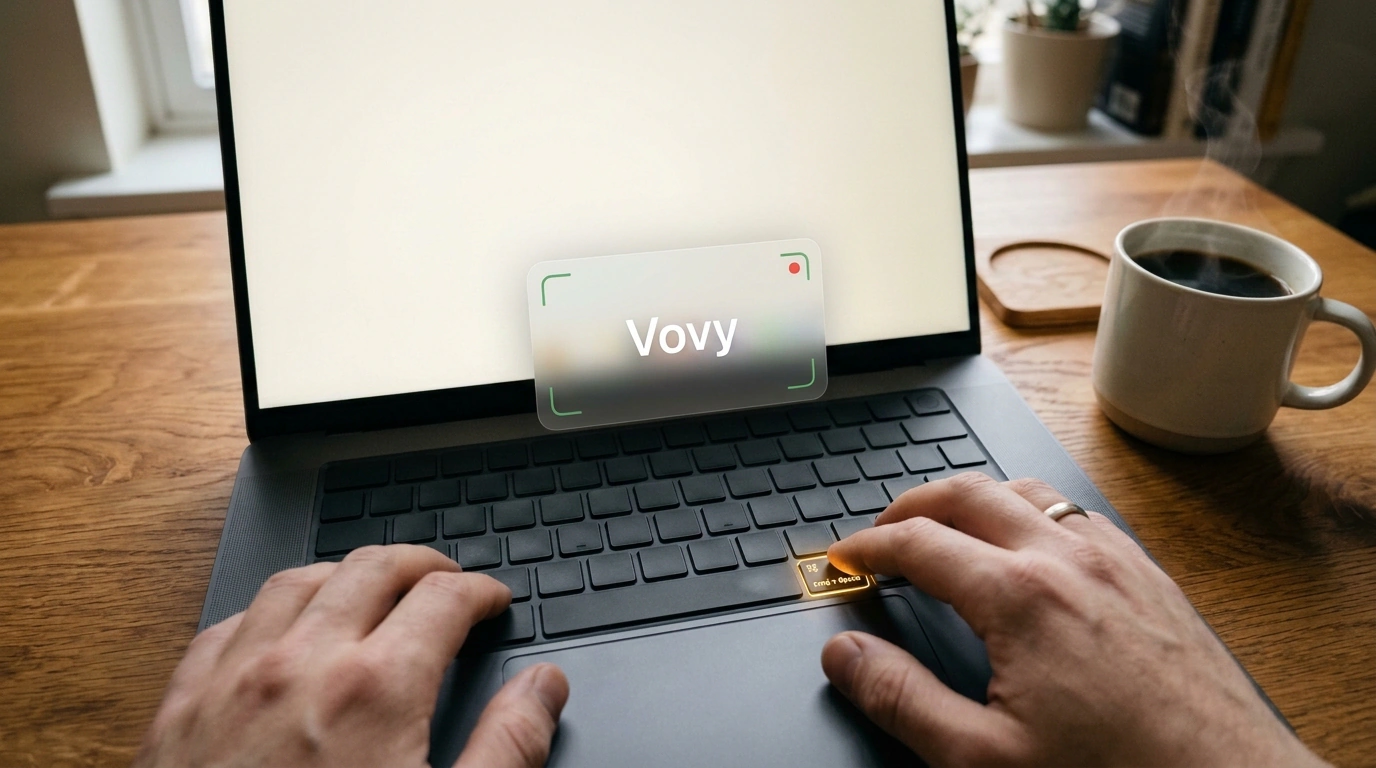
Summoning the assistant is bound to the global hotkey Fn + Control. Press it, and a sleek translucent overlay drops down from the top bar right over whichever app is active — Xcode, Terminal, Figma, Blender, or your mail client. You never have to explain to the neural network where you are: the model already sees your problem in the context of the full screen.
Two Interaction Paradigms: Learn Mode vs. Auto Mode
Vovy's smartest engineering call is cleanly splitting interaction into two modes. Most autonomous agent builders make an "all-or-nothing" mistake: the model either spits out dry chat text or rudely hijacks your mouse. We warned about the risks of losing machine control in our breakdown of how Cursor takes control of your computer. Vovy takes a far more flexible route.
Mentor Mode (Learn Mode)
In Learn Mode, the assistant acts like a live mentor sitting right beside you:
- Instead of grabbing your cursor, Vovy draws crisp translucent overlays atop the active window: softly glowing highlights on target buttons, guiding arrows, and contextual tooltips next to UI elements.
- If you're learning a complex interface (say, UV unwrapping in Blender or configuring Auto Layout constraints in Xcode), the model walks you step by step: "Click this tab on the left, change Radius to 12, and pick the third item in the dropdown."
- This approach is ideal for learning: you don't just get a finished result by magic — you build muscle memory and understand the software's internal logic.
Autopilot Mode (Auto Mode)
When you're staring down a tedious mechanical chore not worth your time, you flip the toggle to Auto Mode:
- The assistant takes over the system cursor.
- Using accessibility tree coordinates, Vovy generates smooth mouse movements, clicks the right buttons, opens System Settings, and types into fields.
- Over 250 ready-made automation recipes are baked into the app's knowledge base: from resolving version conflicts in
pyenvandnvmto configuring a local Caddy web server and issuing self-signed SSL certificates.
Real-World Field Scenario: Untangling a Node.js Version Conflict
Picture a classic web developer headache: you clone someone else's repo, run the build command, and slam into an endless wall of red-and-white errors over incompatible Node.js versions and native node-gyp binary modules.
Instead of googling error fragments on Stack Overflow:
- You press
Fn + Controlwithout ever leaving the terminal. - Ask by voice or text: "Why is this project failing to build?"
- In a fraction of a second, Vovy reads the stack trace straight from the console window, spots that the project requires Node.js 18 while version 22 is active, and notices missing Python compiler headers.
- In Auto Mode, the app takes input, runs
nvmcommands to switch environments, pulls the needed compiler via Homebrew if required, and re-runs the build. - Forty seconds later, the project compiles cleanly, and Vovy hands cursor control right back to you.
Pitfalls, Security, and Screen Privacy
Futuristic as it is, running an on-screen agent demands sharp attention to security:
- Screen Recording and Accessibility permissions: for Vovy to work, macOS requires granting maximum privileges under Privacy & Security. In theory, the app can see everything on screen: passwords in password managers, credit card numbers, private messenger chats, and API keys in open
.envfiles. Users have to trust the service's privacy policy implicitly. - Blind spots in custom graphics engines: while standard macOS apps (built on AppKit or SwiftUI) expose a pristine
AXUIElementtree, software with custom rendering pipelines (Canvas, OpenGL, Vulkan, or older Java/Swing) looks like an opaque black box to the Accessibility API. In those windows, Vovy falls back purely on pixel recognition, raising the risk of misclicks. - Battery drain: continuous high-DPI (Retina) screen capture paired with running neural models for frame analysis puts noticeable load on Apple Silicon chips, trimming laptop battery life away from an outlet.
Vovy highlights an important shift in personal software: AI is no longer an isolated web page you have to visit intentionally. It's becoming a natural layer of the operating system itself, erasing the boundary between a user's thought and its technical execution.