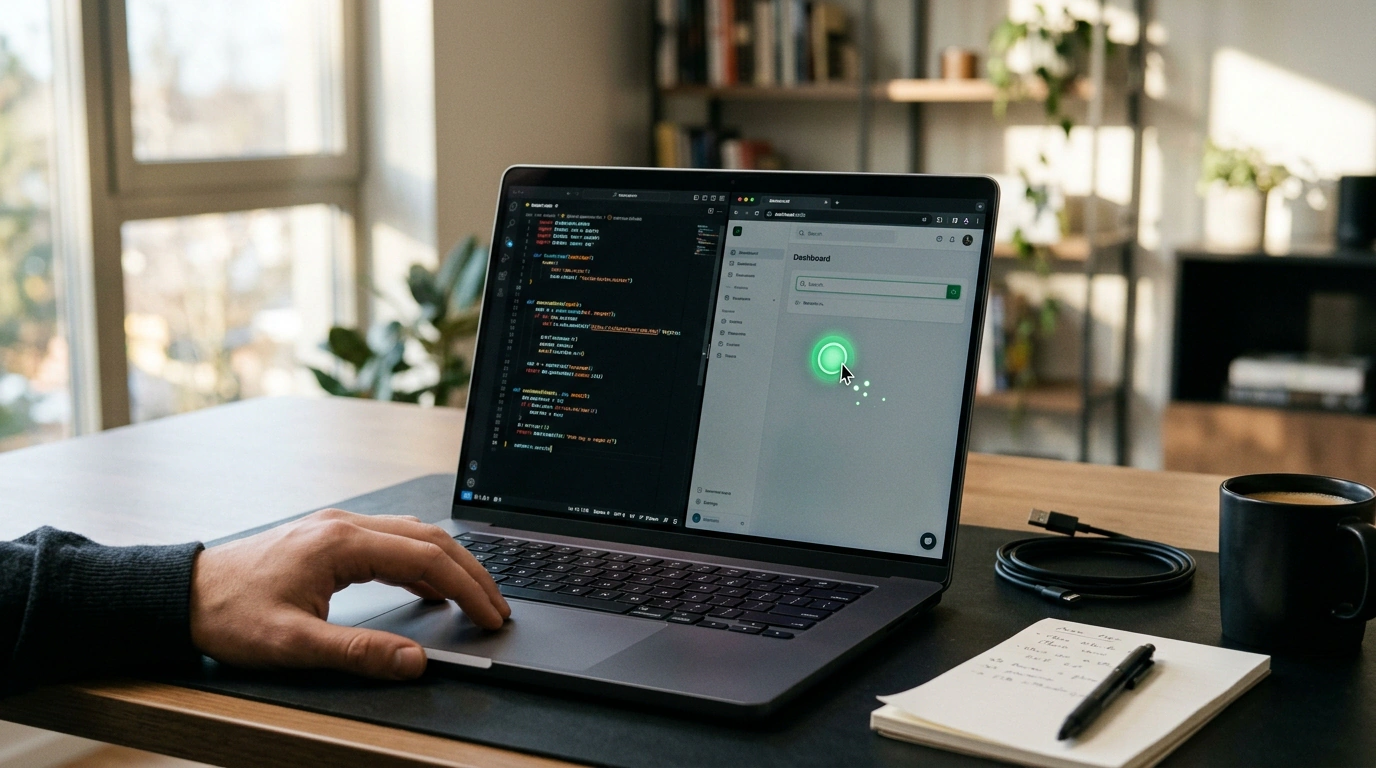
If you've tried building apps with modern AI coding assistants, you know the frustration well: the AI cheerfully announces, "Code written, components created!" You switch to your browser, click the sign-up button—and stare at a blank white screen or a silent crash in the console. So you open DevTools, copy the traceback, paste it back into the editor, wait for a fix, and click around again. Up to 70% of your time goes not into shaping the product, but into playing manual QA tester for a clever robot.
We've already covered architectural traps in AI software where agents stumble against reality. Now, a fresh release of the Cursor IDE (from Anysphere) takes a decisive leap toward full autonomy by integrating Computer Use. The AI agent is no longer trapped inside the text editor—it can launch a browser, move your cursor, click buttons, read console errors, and rewrite code until the app actually works.
The Manual Testing Trap: Why Developers Became Click-Monkeys
Traditional generative coding suffered from a fundamental gap between syntax and runtime reality. A chat model manipulates abstract lines of text: it doesn't know whether a button fits on a phone screen, whether a modal covers an input field, or whether your local server is even responding on port 3000. As a result, the developer or founder became a human bridge between the code and the browser.
Computer Use turns Cursor Composer from a text generator into an autonomous product engineer. The development loop now closes automatically:
- the agent generates both frontend and backend code;
- spins up the local dev server (
npm run dev); - opens a browser window or mobile simulator;
- walks through the user flow from clicking buttons to submitting forms;
- catches any red errors in DevTools and patches the code itself.
Computer Use Architecture in Cursor: Screen Vision, Accessibility, and Mouse Clicks
How does this work under the hood? Unlike classic automation libraries such as Selenium or Playwright—which only interact with a web page's DOM structure—Cursor relies on multimodal vision and native OS APIs.
On macOS, control is handled by a dedicated helper app, Cursor Computer Use.app (bundle co.anysphere.cursor-computer-use), resting on two pillars:
- Screen Recording: a background process captures desktop screenshots and feeds them into the multimodal model's context window (Claude 3.5 Sonnet). The model reads the visual UI just like a person would—locating coordinates for buttons, icons, tooltips, and labels.
- Accessibility Tree and Input Emulation: once it has the target
(x, y)coordinates, the module emulates native mouse movements, physical clicks, and keyboard typing, bypassing restrictions on protected input fields.
That means the agent can test not only websites, but also native desktop apps, terminal tools, and mobile apps inside iOS and Android simulators.
The LaunchFast Case Study: From Idea to $21,000 MRR in Two Months
The most exciting part of this shift is how it changes startup economics. Take the documented case of the micro-SaaS product LaunchFast. A founder without a deep engineering background set out to build an analytics dashboard for Amazon marketplace sellers.
The entire technical build took just 48 hours:
- using prompts and Composer with Computer Use enabled, the founder described metrics scraping and margin visualization features;
- Cursor built the project, spun up the local environment, tested filters in the browser, and squashed a dozen layout bugs on its own;
- tapping into partner distribution via the LegacyX community, the founder offered the tool to sellers at a flat $50/month subscription.
The result: within 60 days, the project reached $21,000 in monthly recurring revenue (MRR). Just a few years ago, building a prototype like that meant months of hunting for contractors and tens of thousands of dollars in engineering and QA costs. Today, the barrier to entry is down to how fast you can formulate a hypothesis.
Setting Up Agent Rules and Granting macOS System Permissions
To configure Cursor for end-to-end testing—building on the practices from our guide to adopting Cursor in workflows—you use project rules. Create a config file at .cursor/rules/computer-use.mdc in the root of your repository:
---
description: Autonomous testing workflow via Computer Use
globs: **/*
---

# Autonomous UI Testing

1. After building the frontend, start the local server:
   `npm run dev`
2. Use the Computer Use tool to navigate to `http://localhost:3000`.
3. Verify key user flows:
   - Enter test values into the calculator fields
   - Click the form submit button
   - Check for errors in the DevTools web console
4. If the UI crashes, isolate the error and fix the file without waiting for confirmation.
To verify the helper module and invoke it on macOS, run these commands:
# Verify the Cursor Computer Use helper service is installed
ls -la ~/.cursor/cursor-computer-use/

# Invoke the agent with an explicit test flow in Composer
# Command: @Computer Use Open localhost:3000 and test the checkout form
Keep in mind that the Computer Use module gets full control over your cursor and screen visibility. Close private messengers, banking apps, and password managers before running active agent tests so a stray click doesn't trigger something unintended.
In macOS System Settings, make sure to toggle on permissions for Cursor Computer Use under both Accessibility and Screen Recording. Once that's done, your IDE turns into a genuine teammate that can take a project from line one to a green checkmark in the browser.