You've probably run into this annoying paradox when generating slide decks or video scripts with AI. You upload a solid forty-page research report, write a detailed prompt, hit generate—and a minute later you get twenty slick-looking slides. Then you actually read them, and disappointment sets in: the model spent ten slides on obvious introductory fluff, squeezed the key financial calculation into one throwaway line, and buried the main takeaway somewhere in the middle. Your only options are sighing and fixing everything by hand, or rolling the dice with another generation.
We've already explored co-creation brainstorming mode in Gemini Notebook and followed review-first mode in the notebook. In its October update, Google took aim at the root cause: the "black box" workflow. Gemini Notebook (the evolution of NotebookLM) now uses a two-stage pipeline—the model won't blindly render final slides or video scripts until it builds an interactive outline and gets your sign-off.
The Black Box Problem: Why Blind Generation Breaks Presentation Logic
Why did single-pass generation fail so often on dense documents? It comes down to how large language models allocate attention. When you ask an algorithm to simultaneously digest a massive wall of text, structure a narrative arc, format bullet points for slides, and pick visual accents, it naturally takes the path of least statistical resistance.
That created three classic headaches for analysts:
- Diluted focus: minor quotes and generic filler got entire slides to themselves, while critical numbers and calculations were crammed into footnotes.
- Broken narrative order: arguments jumped around chronologically, stripping the deck of a clear thread from market problem to financial outcome.
- Wasted editing time: fixing layouts, fonts, and text boxes across twenty already-rendered slides took longer than building the deck from scratch.
Plan First, Generate Second: Inside the Review Outline Toggle
Google's fix is refreshingly pragmatic: "Plan first, generate second."
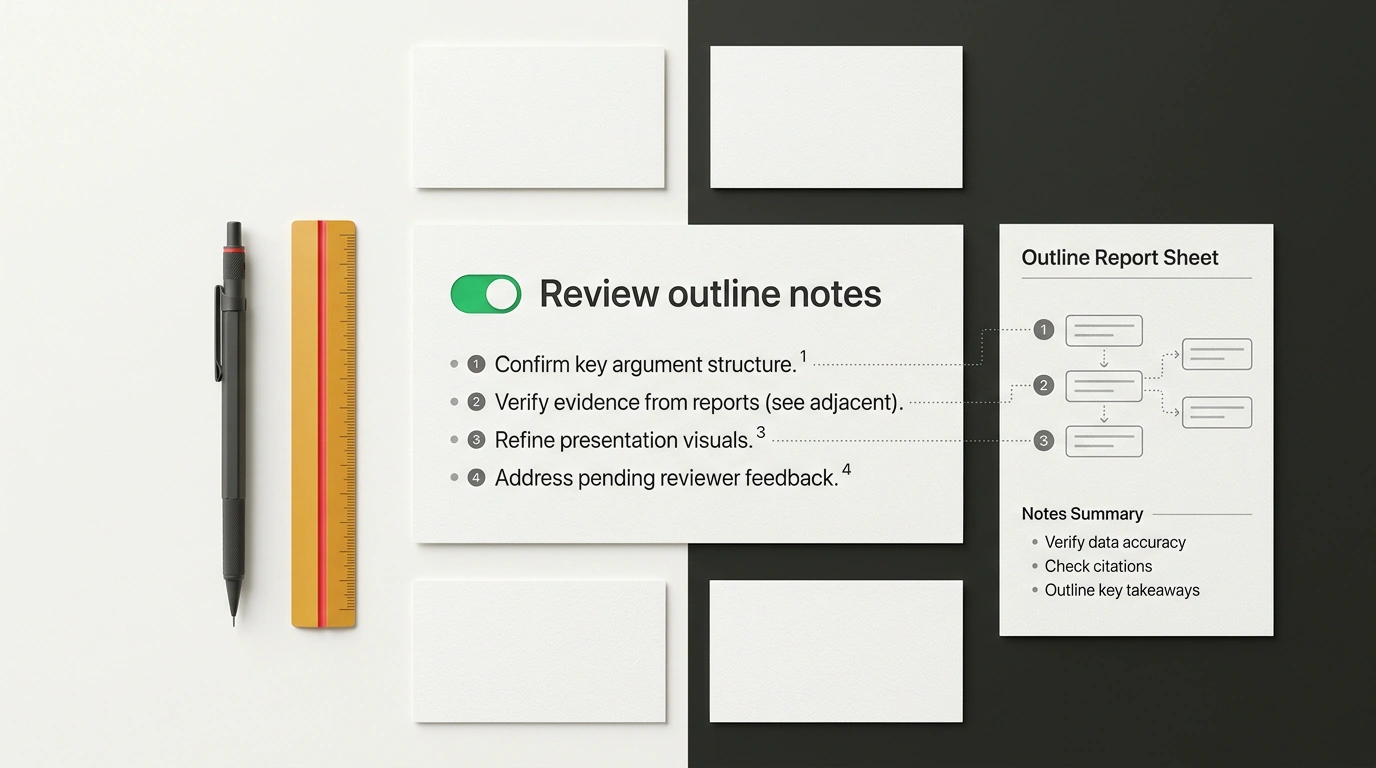
Inside the Studio panel, there's now a dedicated Review outline notes toggle. Turn it on, and creating a slide deck or video script splits cleanly into two isolated phases:
- Planning phase (low compute cost): the model reads your uploaded sources and outputs a lean, structured skeleton instead of finished slides. Every screen has a clear role: slide number, working title, core argument bullets, and linked citations back to your files.
- Interactive human editing: you see the entire arc at a glance. You can drag sections around, delete fluff slides, tweak phrasing, or leave direct instructions ("on slide three, put heavy emphasis on Q2 cost reductions, and cut the intro down to one slide").
- Final rendering phase (high compute cost): only after you click "Proceed" does the model move on to visual slide layout or detailed scriptwriting, following your approved blueprint to the letter.
The exact same logic applies to multimedia scripts: the model locks in segment timing, voiceover lines, and visual cues with you first, saving you from having to regenerate finished media files.
Fact Grounding: How the Notebook Ties Slides to Sources
Gemini Notebook's second major strength is strict source grounding. Unlike general-purpose generators that pull from broad model memory and love to hallucinate, the notebook works strictly from the documents you upload.
Every point in the draft outline carries interactive numbered citations. Click a bullet on slide three, and the system immediately highlights the exact paragraph in your source PDF or row in your spreadsheet. That gives you real confidence walking into a board meeting or investor pitch: every number on every slide is backed by a primary source. Compared with Microsoft Copilot in PowerPoint or Gamma App, this transparent citation trail—combined with on-the-fly outline editing—makes it genuinely viable for serious corporate analysis.
Step-by-Step Workflow: From a Stack of PDFs to a Polished Slide Deck
The practical workflow in Studio is now straightforward and predictable:
Checklist for Building a Deck With Review Outline
- Upload your source documents to the notebook (PDF reports, spreadsheets, memos)
- In the Studio panel, choose your target format: Slide Deck or Video Script
- Enable the 'Review outline notes' toggle before starting generation
- Review the generated outline, reorder slides if needed, and approve the structure
- Click 'Proceed' and export the finished deck to Google Slides with speaker notes
On export, your presentation moves seamlessly into Google Slides or downloads as a PDF with speaker notes attached to each slide. Reviewing and adjusting the outline takes just a couple of minutes—and saves you from having to rebuild the AI's work from scratch later.