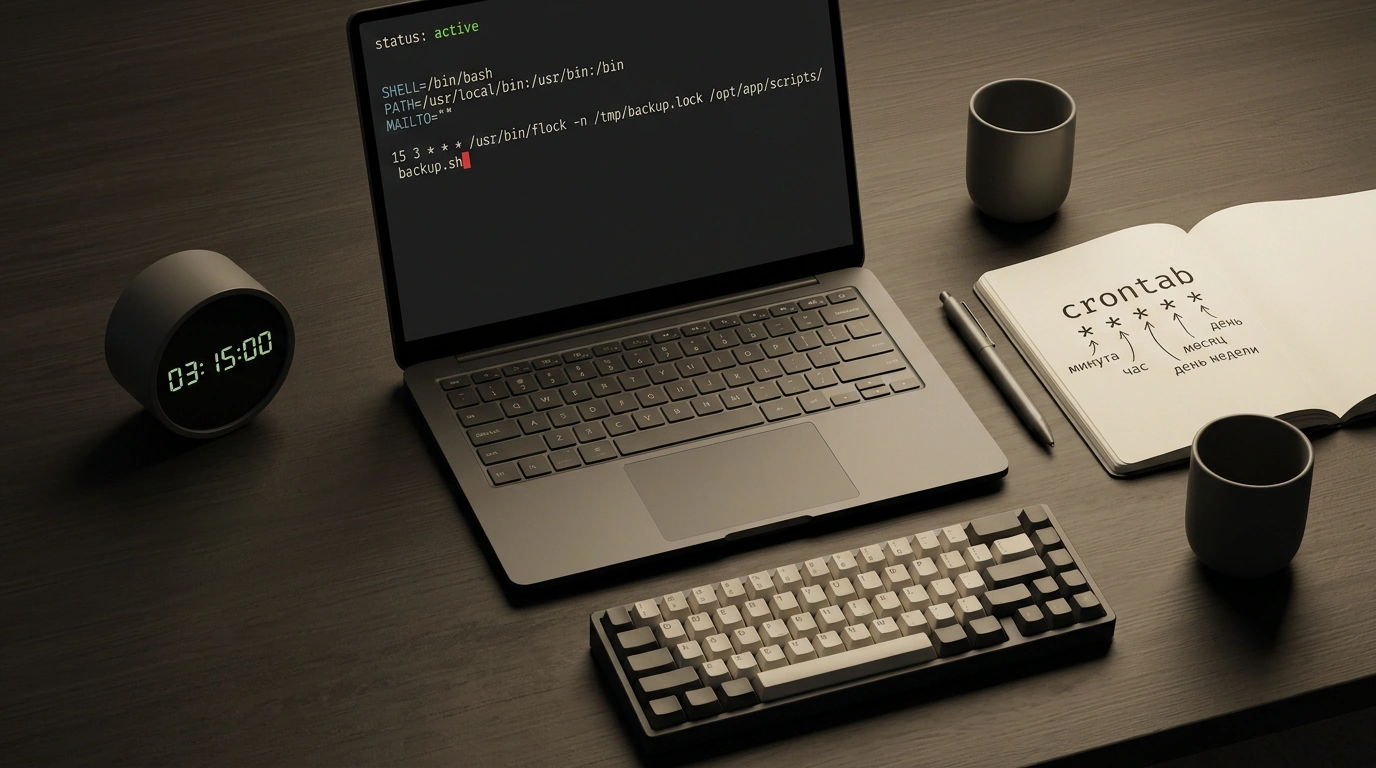
In system administration and DevOps, there's a time-tested rule: if you run a routine task by hand more than twice, it's time to automate it. Taking a nightly database dump, clearing out temporary files in /tmp, renewing a TLS certificate, or posting a morning summary report to team chat—these are all classic jobs the operating system should handle while you sleep soundly.
Even though modern stacks are packed with complex orchestrators, Kubernetes operators, and cloud schedulers, the backbone of Linux automation for decades has been the humble Cron subsystem. It runs on millions of servers worldwide, from tiny two-dollar VMs to massive banking clusters.
Here's the paradox: despite its deceptively simple asterisk syntax, cron remains an endless source of late-night incidents. How many times have you heard—or said yourself—"The script works fine in my terminal when I run it by hand, but under cron it silently crashes or does nothing at all"? Sound familiar?
I've debugged plenty of these failures and know firsthand how much grief cron's isolated environment can cause. In this guide, we'll walk through the entire subsystem together: from schedule syntax per the official crontab(5) standard and practical advice from this cron guide, to environment variable traps, silencing spammy local mail, preventing overlapping runs with locks, and knowing when to reach for systemd timers instead.
Subsystem Anatomy: The Difference Between cron, crond, and crontab
When newcomers start working with the scheduler, the terminology often blurs together: cron, crond, crontab. They look like typos of the same word. Let's draw clean lines between them:
- The Cron daemon (
crondorcronin process lists): a long-lived system service that starts early during OS boot and stays resident in memory. Its loop is remarkably minimalist: once every minute (at the 00 second mark), it wakes up, scans system and user configuration directories, compares the current system time against defined rules, and forks child processes for any commands whose schedule matches the current minute. - A Crontab file (short for cron table): a plain text file with strict formatting where each line pairs a time interval with a shell command to run.
- The
crontabutility: a CLI executable (often with the SUID bit set) that acts as a safe interface to read, edit, and install your personal schedules without poking around inside protected spool directories by hand.
Most modern Linux distributions ship one of two main implementations: Vixie Cron (descended from Paul Vixie's classic daemon on Debian and Ubuntu) or cronie (Red Hat's evolution used on RHEL, Rocky Linux, CentOS, AlmaLinux, and Fedora).
You manage the daemon through your standard service manager:
# Check active service status on Debian and Ubuntu
sudo systemctl status cron

# Check status on Red Hat family distros (RHEL / Rocky / Fedora)
sudo systemctl status crond
If the service is disabled for any reason, you can start it and enable it on boot with a single command:
# Enable on boot and start immediately
sudo systemctl enable --now cron   # for Debian/Ubuntu
sudo systemctl enable --now crond  # for RHEL-based distros
Schedule Syntax: Five Time Fields, Special Characters, and Built-in Shortcuts
Every active line in a user's crontab consists of two parts: five time fields and the command to execute.
The classic layout looks like this:
┌───────────── minute (0 to 59)
│ ┌───────────── hour (0 to 23, 24-hour format)
│ │ ┌───────────── day of month (1 to 31)
│ │ │ ┌───────────── month (1 to 12 or names JAN-DEC)
│ │ │ │ ┌───────────── day of week (0 to 6 or SUN-SAT, where 0 and 7 are Sunday)
│ │ │ │ │
* * * * * /path/to/your/command arguments
To build flexible schedules, each field supports special characters:
- Asterisk (
*): means "every possible value." In the minute field, the command runs every minute. Put asterisks in all five fields (* * * * *), and your script runs every single minute around the clock. - Comma (
,): defines a discrete list of values. For example,0,15,30,45 * * * *runs the command every fifteen minutes (at :00, :15, :30, and :45 past each hour). - Hyphen (
-): defines a continuous range. For example,0 9-18 * * 1-5runs at the top of every hour from 9:00 AM to 6:00 PM, Monday through Friday only. - Slash (
/): sets a step interval. Writing*/10 * * * *means "every 10 minutes." You can combine steps with ranges too:0 8-20/2 * * *runs every 2 hours between 8 AM and 8 PM (at 8, 10, 12, 14, 16, 18, and 20).
There is one subtle logical quirk in this syntax that trips up even seasoned engineers: the interaction between day of month (field 3) and day of week (field 5). If both fields have specific values (not asterisks), cron combines them with a logical OR, not AND!
For instance, this line:
0 12 1,15 * 1 /usr/local/bin/report.sh
will run the script on the 1st and 15th of the month, plus every Monday, regardless of the date! If you actually need a job to run strictly on the first Monday of the month, five fields alone can't express it: you have to schedule it every Monday from the 1st through the 7th, or run it on Mondays and check the day inside the command with test $(date +\%u) -eq 1. By the way, if you ever need to translate plain English phrases into expressions like these, check out our look at cronsense: translating natural language into cron, RRULE, and systemd expressions.
To save you from calculating fields for common intervals, Vixie cron's authors added handy macros:
@reboot: runs the command once at OS startup right after the daemon initializes.@hourly: equivalent to0 * * * *(top of every hour).@dailyor@midnight: equivalent to0 0 * * *(every midnight).@weekly: equivalent to0 0 * * 0(midnight between Saturday and Sunday).@monthly: equivalent to0 0 1 * *(midnight on the 1st of every month).@yearlyor@annually: equivalent to0 0 1 1 *(midnight on January 1st).
User Tables vs. System Tables: Where to Find /etc/crontab and /etc/cron.d/
Architecturally, Linux separates cron schedules into two distinct layers: user tables and system tables.
User crontabs:
Every user on the system (including root) has a personal schedule file. Physically, these live in a protected system spool directory:
- On Debian / Ubuntu:
/var/spool/cron/crontabs/<username> - On RHEL / CentOS:
/var/spool/cron/<username>
Never edit these files directly in a text editor! The spool directory has strict permissions, and the daemon caches tables in memory. Always edit schedules through crontab -e. It creates a temporary copy, validates syntax on save, and signals the daemon to reload the configuration immediately.
Commands for managing user schedules:
# Open the current user's crontab for editing
crontab -e

# Print the current schedule to the terminal without editing
crontab -l

# Delete your entire schedule (careful, no confirmation prompt!)
crontab -r

# View or edit another user's crontab as an administrator
sudo crontab -u nginx -l
sudo crontab -u nginx -e
System schedule files:
The second layer consists of system-wide tables managed by OS administrators or package managers (apt, dnf). These live under /etc:
- The
/etc/crontabfile - Modular drop-in files inside
/etc/cron.d/
The key architectural difference between a system crontab and a user crontab: system files include a sixth field—the username under which the command should execute!
Compare the two formats:
# User crontab (5 time fields + command):
0 4 * * * /home/app/backup.sh

# System /etc/crontab (5 time fields + USER + command):
0 4 * * * root /usr/local/bin/system-backup.sh
0 5 * * * postgres /usr/bin/vacuumdb -a -z
If you copy a line out of /etc/crontab and paste it into your personal crontab -e, cron will treat the username as the binary name and fail with root: command not found.
Batch Execution and Drop-in Directories: cron.daily, anacron, and run-parts
Peek inside /etc and you'll spot four familiar directories:
/etc/cron.hourly//etc/cron.daily//etc/cron.weekly//etc/cron.monthly/
This is a modular automation mechanism for packages and admins alike. You don't need to touch crontab lines at all: just drop an executable bash script (chmod +x) into /etc/cron.daily/, and the system runs it once a day.
Under the hood, the run-parts utility executes these directories, and it enforces a strict naming rule: filenames must not contain dots, hyphens, or extensions! A script named my-backup.sh inside /etc/cron.daily/ will be silently ignored by run-parts. The right name is mybackup, with no .sh at the end. You can verify which scripts run-parts will actually pick up with a dry run:
# Dry-run directory scan without executing any scripts
run-parts --test /etc/cron.daily
What happens if a server or your work laptop is powered off overnight? Classic cron simply misses the 06:25 AM window, and that day's job never runs.
To solve that, Linux pairs cron with anacron (anachronistic cron). Rather than firing at exact minutes and hours, anacron tracks timestamps of the last completed run using marker files in /var/spool/anacron/. When the machine boots back up and anacron sees that yesterday's daily job was missed, it runs it in the background after a short delay.
The #1 Beginner Trap: Minimal Environment, Truncated PATH, and /bin/sh
Now let's talk about the iceberg that sinks hundreds of scripts. Why does code that runs flawlessly in your terminal keep failing inside cron?
Blueprint-style engineering infographic comparing an interactive bash user shell against an isolated cron environment with a truncated PATH.
The culprit is strict environment isolation.
When you SSH into a server, you get an interactive login shell. Your terminal reads profile configuration files: /etc/profile, ~/.bash_profile, ~/.bashrc. Those load environment variables, paths to node, nvm, pyenv, Python virtual environments, access tokens, and database settings. Your PATH variable might hold a dozen directories.
How does cron launch a command?
- A non-interactive, non-login shell: cron flatly ignores
~/.bashrcand~/.profile! None of your custom user environment variables exist when the job starts. - A stripped-down PATH: in Vixie cron by default,
PATHis hardcoded to just two system directories:PATH=/usr/bin:/binIf your script calls tools in/usr/local/bin,/opt/,~/.cargo/bin,docker,docker-compose, or system binaries in/sbin, cron spits outcommand not foundand exits. - Default shell is
/bin/sh: cron executes commands via a lightweight POSIX shell (on Ubuntu and Debian, that'sdash), not full/bin/bash. Any Bash-specific syntax ("bashisms" like double brackets[[ ... ]], arrays, or string substitutions like${var//foo/bar}) will throwsyntax error: unexpected operand.
How do you beat environment isolation? Follow two rock-solid engineering rules:
Rule 1. Declare variables explicitly at the top of your crontab: Crontab syntax lets you set environment variables right at the top of the file:
SHELL=/bin/bash
PATH=/usr/local/sbin:/usr/local/bin:/usr/sbin:/usr/bin:/sbin:/bin
HOME=/home/deploy

0 3 * * * /home/deploy/scripts/backup.sh
Rule 2. Always use absolute paths inside scripts:
Never write python main.py or docker compose up. Write:
/home/deploy/app/venv/bin/python3 /home/deploy/app/main.py
Or make your script explicitly change into its working directory on the very first line:
cd /home/deploy/app && ./run.sh
Managing Output: Disabling MAILTO, Logging to Files, and Locking with flock
Baked into cron's design is a relic from 1970s mainframes: any output a command produces (whether stdout messages or stderr errors) gets captured by the daemon and emailed locally to the current user via a Mail Transfer Agent (MTA like sendmail or postfix).
In real-world setups, either no local MTA is configured (so /var/log/syslog fills up with mail: cannot send message errors), or root's local mailbox quietly balloons to hundreds of gigabytes.
Here's how to tame output properly:
1. Disable local mail:
Set an empty MAILTO="" at the top of your crontab to turn off local email delivery for all jobs:
MAILTO=""
2. Redirect output cleanly to a log file:
When you want execution history and error diagnostics, append both streams (>>) to a log file:
# Redirect stdout to a log file and merge stderr (fd 2) into stdout (fd 1)
30 2 * * * /usr/local/bin/db-backup.sh >> /var/log/db-backup.log 2>&1
3. Silence noisy commands you don't need logged: If a script produces chatter you don't care to keep, send all output into the virtual black hole:
0 * * * * /usr/local/bin/cleanup-temp.sh > /dev/null 2>&1
4. Prevent overlapping runs (race conditions) with flock:
Suppose you schedule a file sync or queue processor every 5 minutes:
*/5 * * * * /usr/local/bin/process-queue.sh
Normally, the script finishes in 40 seconds. Then one day a heavy batch hits the queue, and the run stalls for 15 minutes. What does cron do? Five minutes later, it blindly launches a second copy of the same script! Five minutes after that, a third! Soon, multiple parallel processes are fighting over the same database and pegging the CPU at 100%.
The fix is the standard flock utility, which acquires an exclusive file lock:
*/5 * * * * /usr/bin/flock -n /var/run/process-queue.lock /usr/local/bin/process-queue.sh >> /var/log/queue.log 2>&1
The -n (non-blocking) flag tells flock: if the previous instance is still running and holding the lock file, exit immediately without waiting and without spawning duplicates.
Practical Playbook: Setting Up, Testing, and Auditing Jobs Safely
Let's put together a clean step-by-step workflow for adding a new scheduled job to a production server without surprises.
- Pick a comfortable editor:
The system might open an unfamiliar default editor. Set
nanoin your shell session first:
export EDITOR="nano"
export VISUAL="nano"
- Open crontab for editing:
crontab -e
- Write a safe, predictable header and schedule:
# Set a predictable shell and PATH
SHELL=/bin/bash
PATH=/usr/local/sbin:/usr/local/bin:/usr/sbin:/usr/bin:/sbin:/bin
MAILTO=""

# Every night at 03:15: database dump with locking and logging
15 3 * * * /usr/bin/flock -n /tmp/backup.lock /opt/app/scripts/backup.sh >> /var/log/app/backup.log 2>&1

# Every Sunday at 04:00: rotate old archives
0 4 * * 0 /usr/bin/find /opt/app/backups -type f -mtime +30 -delete > /dev/null 2>&1
- Check script permissions: Make sure the script has the executable bit set:
chmod +x /opt/app/scripts/backup.sh
- Run a Zero Environment Test:
Before waiting for 3:15 AM to roll around, test how your script behaves under cron's harsh isolation using
env -i:
# Run the command with a wiped environment and minimal PATH
env -i HOME="$HOME" PATH="/usr/bin:/bin" /bin/sh /opt/app/scripts/backup.sh
If it fails here, it was guaranteed to fail in cron. Fix those binary paths right now.
- Audit actual execution in system logs: Every time the daemon triggers a job, it writes to the system journal. You can verify cron woke up on schedule with:
# On systemd-based distros
journalctl -u cron -n 20 --no-pager     # Debian/Ubuntu
journalctl -u crond -n 20 --no-pager    # RHEL/CentOS

# In classic syslog files
grep CRON /var/log/syslog | tail -n 20
When Cron Hits Its Ceiling: Comparing with systemd Timers
For all its brilliant simplicity, classic cron was designed in a different computing era. In modern server infrastructure, it has three fundamental limits:
- One-minute minimum granularity: cron has no native way to run a task every 10 seconds or every 500 milliseconds.
- Blind execution without dependencies: cron knows nothing about whether the network is up, disks are mounted, or the database is ready.
- No built-in resource limits: cron jobs run outside dedicated cgroup bounds; you can't cap RAM or CPU cores for a task directly inside a crontab line.
When those limits matter, systemd timers step in. They pair two unit files: a .service unit (what to run) and a .timer unit (when to run it):
# /etc/systemd/system/mytask.timer
[Unit]
Description=Periodic data synchronization

[Timer]
OnBootSec=5min
OnUnitActiveSec=30s
AccuracySec=1ms
Persistent=true

[Install]
WantedBy=timers.target
The advantages of systemd timers are clear: sub-second precision, event-relative triggers (like 5 minutes after boot), automatic catch-up for missed runs (Persistent=true), strict resource caps in the .service unit (MemoryMax=512M, CPUQuota=50%), and seamless journalctl integration.
Still, for 90% of everyday chores—backups, log cleanup, and periodic API pings—good old cron remains the fastest, lightest, and most dependable tool preinstalled on every Linux server. Just remember environment isolation, absolute paths, and process locking.
Pre-flight checklist before adding a new cron job
-
PATHandSHELLare explicitly set at the top of thecrontabfile - Both the cron line and the script itself use full absolute paths for all binaries
- The script file has the executable bit set (
chmod +x) -
MAILTO=""is disabled, or output streams are redirected to a log file (>> /path/to/log 2>&1) - Long or heavy jobs are wrapped with
flockto prevent overlapping runs - The script has been tested in a wiped environment using
env -i