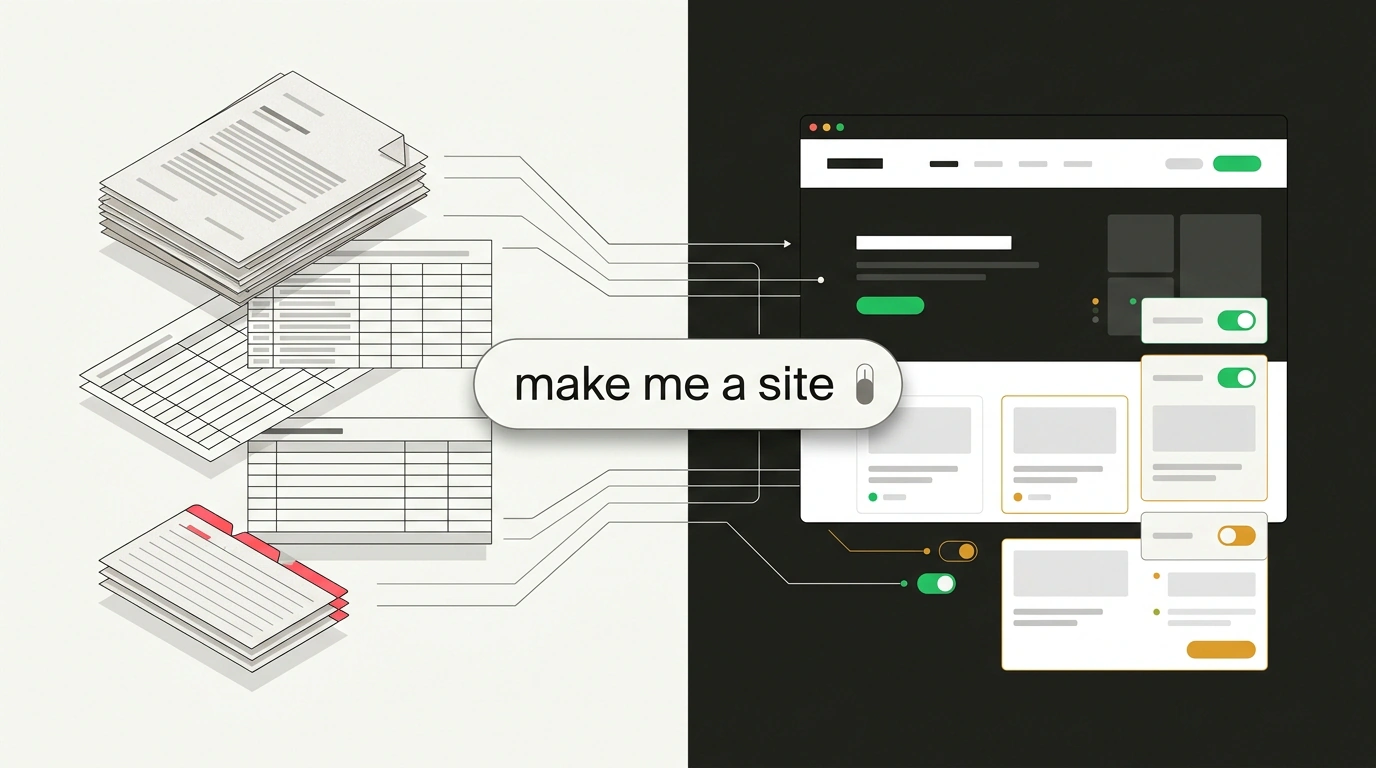
Upload a metrics spreadsheet, support notes, and a task list into a notebook, then type make me a site in chat. A couple of minutes later, a new tab opens with a clickable dashboard featuring filters, checkboxes, and links back to your source files. The trick works without a single line of code, as long as you clean up your documents first and state your goal clearly from the start.
From static PDFs to a live page in Studio
On November 16, 2026, Google Labs launched interactive site generation in an official blog post for Gemini Notebook, formerly known as NotebookLM. Before this, you had to drag spreadsheet numbers into slides, send out a heavy PDF, and rebuild the deck from scratch a week later. Now at notebook.google.com, a single chat prompt builds a finished page inside the right-hand Studio panel. While it generates, you can keep working with your documents.
Google highlighted three formats: visual explainers like a periodic table or timeline, interactive dashboards with quarterly sales, and project trackers with priorities and deadlines. The finished page opens in a separate tab, saves your filters, notes, and checkboxes, and can be shared via link or downloaded as a file.
The tool is rolling out free on the web for users 18+ in all supported countries, including Google Workspace accounts, with mobile coming later. On the free tier, a notebook holds up to 50 sources of up to 500,000 words or 200 MB per file, while Google Sheets caps at 100,000 tokens and Google Slides caps at 100 slides.
Source grounding and sharing traps to watch out for
Ask a regular chatbot for a dashboard, and it will happily invent numbers to make a chart look good. Gemini Notebook relies on source grounding: the model builds blocks strictly from your uploaded files and cites where every fact came from.
In Julian Goldie's walkthrough, this workflow was tested on a sample project called Flowdesk. He uploaded a 12-week metrics sheet with signups, trials, conversions, cancellations, and tickets, plus a page of support notes and four quarterly goals. The prompt asked why week 39 dropped and told the model to turn the goals into a checklist for a 10-minute review. The service connected the dip to a broken Outlook calendar sync mentioned in the support notes and placed that reason right next to the chart.
Before sharing a link with your team, check the rules in the Gemini Notebook help center. When you share a site, the recipient needs access to the entire source notebook, and public links work only on personal accounts with owner or editor rights. That means private financial data shouldn't go into a shared notebook. Also, if a teammate checks boxes on a shared page, even the owner won't see their checkmarks—every viewer gets their own isolated input layer. And if you edit a spreadsheet in Google Drive, an already built site in Studio won't update on its own; you have to rebuild it.
The main launch mistake and four rules for clean results
You get a generic placeholder by following the "garbage in, garbage out" rule. If you dump a dozen raw tables with column names like Col_1 into one notebook and ask for "a site about my business," the generator spits out a template and wastes one of your quota runs. On the free plan, compute quota refreshes every five hours up to a weekly cap. AI Plus and AI Pro plans raise it by 2x and 4x, AI Ultra multiplies the Pro limit by 5x or 20x, and the web app includes a Generate later button for queued runs.
To get a useful page on the first try, follow four rules:
- Fix column and section headers before uploading, since the generator copies your names straight into the UI.
- Keep one notebook per task instead of mixing a dashboard, a client brief, and a personal tracker.
- Put the audience, target action, and main files in the first line of your prompt, and tell the model to use only your sources.
- Click through the finished page and verify numbers against your sheet before sharing the link: source grounding cuts down inventions, but you're still responsible for the final output.