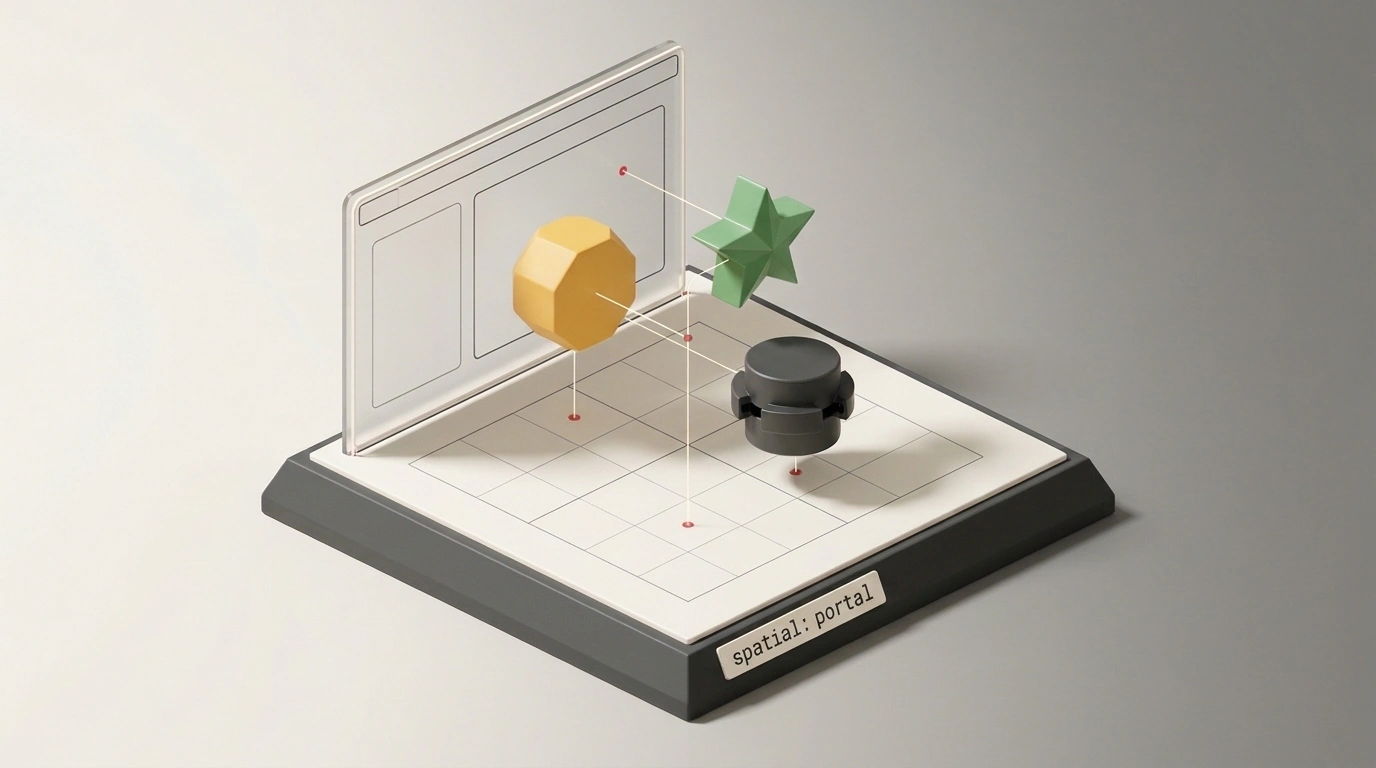
Imagine a common real-world task. You need to place two or three 3D objects on a product page or landing page instead of a flat image. They should sit next to each other, catch the same light, and respond to clicks. It sounds simple, yet behind the scenes, that "simple" widget immediately spins up a whole mini-engine.
The browser has to load a library like Three.js, Babylon.js, or PlayCanvas on top of WebGL or WebGPU. Then you build the scene by hand, configure a virtual camera, run a render loop on every frame, and wire up mouse and touch gestures. On top of that, you have to make sure the 3D canvas doesn't break on screen rotation, dark mode switches, or a user's prefers-reduced-motion setting. Plain CSS knows nothing about what happens inside that <canvas>.
The WebKit team decided to approach this from the other side and bring basic 3D composition straight into HTML and CSS. On November 16, 2026, WebKit engineer Brendel Zachernuk published the Spatial CSS Developer Preview announcement on the WebKit blog. At the same time, the W3C CSSWG released a draft specification for CSS Spatial Layout Module Level 1. Right now, this only works as an early preview in Safari on visionOS 27.3 behind an experimental flag, so it's too early for production. Still, you can already try the mechanics and see how browsers plan to connect 3D models with familiar web layout.
From Heavy WebGL Engines to the <model> Tag: Why One Model Isn't Enough
The first step toward 3D without tons of JavaScript was the HTML <model> element itself. In stable Safari 27, it already works across all Apple devices: iOS, iPadOS, macOS, and visionOS (though Chrome and Firefox don't have it yet). The idea behind the tag is simple. You embed a 3D model into a page just as naturally as an image with <img> or a video with <video>.
Inside <model>, the browser understands two main formats. The first is USDZ (model/vnd.usdz+zip), Apple's ecosystem archive built on Pixar's Universal Scene Description, which bundles geometry, materials, and baked animations. The second is the open, web-popular glTF / GLB (model/gltf-binary). If a browser doesn't recognize <model>, it simply shows the fallback <img> inside—classic progressive enhancement with no extra scripts.
<!-- Basic 3D model embed in Safari 27 with a fallback image -->
<model stagemode="orbit" alt="3D model of a chair">
  <!-- Format for Apple devices (USDZ) -->
  <source src="chair.usdz" type="model/vnd.usdz+zip">
  <!-- Open format for the web (GLB / glTF) -->
  <source src="chair.glb" type="model/gltf-binary">
  <!-- Fallback for Chrome, Firefox, and older browsers -->
  <img src="chair-fallback.jpg" alt="3D model of a chair">
</model>
The stagemode="orbit" attribute immediately lets users rotate the chair with a mouse or gesture without writing a single line of JS. That looks like a dream setup until you put more than one object on the page.
Every <model> lives in its own isolated box. You can't nest one <model> inside another <model> like a regular <div>. In WebKit terms, it behaves like a replaced element with no 3D child flow of its own. As a result, two neighboring models on a page know nothing about each other. They have separate coordinate systems, separate lighting, and no way to snap together into one scene. To build even a simple multi-part configurator, you still had to go back to WebGL.
Spatial CSS in WebKit: How to Lay Out 3D Objects on the Web with Plain CSS
A Shared 3D Space: How spatial: portal and True Transforms Work
To show how Spatial CSS removes that limitation, the WebKit team built an interactive demo with a wooden shape-sorter puzzle. It has a wooden board with cutouts (board.usdz) and separate 3D pieces like an octagon (octagon.usdz) and a star (star.usdz).
The key feature that unites separate <model> tags is the new CSS property spatial: portal. Put it on a regular container like a <div> or <figure>, and that block turns into a shared 3D portal. Every <model> inside it leaves its separate "fishbowl" and enters a single 3D scene with one coordinate system.
Inside that portal, the familiar CSS transform property (backed by DOMMatrix under the hood) becomes a true 3D transform with real physical units like centimeters. You can move, rotate, and scale each model independently. Even better, you can animate them with standard CSS transition and @keyframes.
<!-- Container with spatial: portal merges models into one scene -->
<div class="world" style="spatial: portal;">
  <model id="board" src="board.usdz"></model>
  <model id="octagon" src="octagon.usdz"></model>
  <model id="star" src="star.usdz"></model>
</div>

<style>
  /* Shift the octagon left by 50 real-world centimeters */
  #octagon {
    transform: translateX(-50cm);
  }

  /* Shift the star right by the same 50 centimeters */
  #star {
    transform: translateX(50cm);
  }
</style>
Notice the cm unit. Almost nobody uses centimeters in flat web layouts because they're arbitrary on a monitor. In the spatial web, though, objects have a real physical scale, and translateX(-50cm) means an exact half-meter shift from the scene center. You don't write a requestAnimationFrame loop either. If you want a piece to glide smoothly on hover or click, just add transition: transform 0.4s ease and the browser interpolates the 3D motion for you.
For now, the preview focuses on <model> elements, but the specification aims broader. In the future, regular web content will be able to live inside a portal too.
Snapping Without Guessing Coordinates: 3D Anchors on Top of CSS Anchor Positioning
Here's an obvious question: say we put the board and pieces into one portal. How do you place the octagon right inside its cutout on the board? If you guess translateX, translateY, and translateZ by eye, the layout breaks as soon as a model or its scale changes. And as we saw, you can't nest <model id="octagon"> inside <model id="board"> in HTML.
WebKit solves this cleanly by extending CSS Anchor Positioning into the third dimension. The work splits neatly between the 3D artist and the web developer:
- In a 3D editor like Blender, the designer opens the base model (
board.usdz) and places invisible reference points called null objects or empties. For instance, they place a point in the center of the cutout and name itoctagon-position. - In CSS, the developer gives the base model an anchor name via
anchor-name, then points the second model to that specific spot inside the anchor using a hash:--board#octagon-position.
<div class="world">
  <model id="board" src="board.usdz"></model>
  <model id="octagon" src="octagon.usdz"></model>
  <model id="star" src="star.usdz"></model>
</div>

<style>
  /* Declare the board as a reference anchor in the scene */
  #board {
    anchor-name: --board;
  }

  /* Snap the octagon to the empty inside board.usdz */
  #octagon {
    position-anchor: --board#octagon-position;
    position-context: anchor;
  }

  /* Standard CSS properties like display: none also work */
  #star {
    display: none;
  }
</style>
The position-context: anchor property switches the element into the coordinate system of that reference point. The octagon snaps right into its slot without a single manual centimeter offset. Better yet, if the reference point inside the 3D file is animated, the anchored model follows along automatically.
In real projects, this saves a huge amount of trouble. Picture an online configurator for furniture, bikes, or sneakers. The 3D designer marks attachment points for legs, handles, or accessories in Blender once. Then the frontend developer swaps options and snaps parts together with CSS, never touching matrices or geometry. And look at the end of that snippet: good old display: none is all it takes to hide the star from the scene.
Light and Reflections via @environment-map: Site Themes Control the 3D Scene
When multiple models share a space, placing them at the right coordinates isn't enough. They also need to look like part of the same world. In 3D, that job belongs to an Environment Map. It's essentially a 360-degree HDR panorama in equirectangular projection (like a world map unwrapped into a rectangle). The engine wraps the scene in that sphere and pulls ambient lighting and surface reflections from it.
Previously, you had to pass that map via an HTML attribute on every single <model>. If you had five models and a light/dark theme toggle, keeping lighting in sync by hand was painful. Spatial CSS moves lighting into a declarative @environment-map rule, whose syntax looks a lot like @keyframes.
<!-- Switch the mood of the whole 3D scene with a regular CSS class -->
<div class="world spooky">
  <!-- Nested <model> elements receive shared lighting -->
</div>
You define the light map in CSS using @environment-map with a name, format, and path to the HDR file, then attach it to the portal with the environment-map property.
/* Define a reusable 360-degree HDR light map */
@environment-map {
  name: "spooky";
  format: equirectangular;
  src: url("night.hdr");
}

/* Apply night lighting to the entire portal at once */
.world.spooky {
  environment-map: "spooky";
}
Once that's in place, everything follows the normal CSS cascade. Want to dim the 3D scene when the user switches their OS to dark mode? Put environment-map inside @media (prefers-color-scheme: dark) and every model in the portal catches night reflections together. No JavaScript walking the scene tree to reload environment textures on each object.
Orbiting the Scene and Stepping Into the Room: portal-action and requestVolumetricScene()
A static 3D diorama in a browser window is nice, but users almost always want to spin it around and inspect every angle. For a single <model>, the stagemode="orbit" HTML attribute did the trick. For an entire portal of models, WebKit added a CSS counterpart: portal-action: orbit.
/* Enable a shared 3D portal and let users orbit the whole scene */
.world {
  spatial: portal;
  portal-action: orbit;
}
One line of portal-action: orbit turns on rotation for the whole combined scene, and the draft leaves room for future interaction modes like pan-x and pan-y. Still, the preview saved its flashiest trick for visionOS. You can literally pull the scene out of the flat browser window into the physical room around the user. Portal DOM elements get a JavaScript method called requestVolumetricScene(), which only fires on an explicit user action such as a button click.
/* On click, pop the 3D portal out of the browser into the room */
launchSpaceButton.addEventListener("click", (event) => {
  const world = document.querySelector(".world");
  world.requestVolumetricScene();
});
After the click, the system opens a Connected Volumetric Scene—a 3D scene floating in the room while staying linked to the webpage. It isn't a static snapshot or an export to a separate viewer. It's a live extension of your DOM. If a script on the page adds a new model, toggles the .spooky class, or moves a block via an anchor, the object floating in front of the user updates right away.
To see where Spatial CSS fits among existing 3D web approaches, here's a quick comparison.
| Approach | Shared 3D scene & snapping | Lighting & CSS integration | Custom graphics (shaders, physics) | Browser support |
|---|---|---|---|---|
| WebGL / WebGPU (Three.js) | Full control via JS code | Manual sync with CSS | Yes, any games and effects | All modern browsers |
Single <model> | No, each object is isolated | HTML attributes on the tag only | No, pre-built models only | Stable Safari 27 (Apple) |
Spatial CSS (spatial: portal) | Yes, via portal and 3D anchors | Full: cascade, themes, @environment-map | No, focused on model composition | Preview in Safari on visionOS 27.3 |
The table makes one thing clear: Spatial CSS isn't trying to kill Three.js. Imperative engines on top of WebGL and WebGPU aren't going anywhere for games, physics simulations, particles, and custom shaders. For product 3D showcases, store cards, and configurators, though, a declarative approach can cut hundreds of lines of boilerplate down to a few dozen lines of familiar CSS.
Where It Works Today, What's Missing, and Where the Standard Is Heading
If you want to open an editor and play with portals right now, keep a few strict limits in mind. At launch, Spatial CSS works only in Safari on visionOS 27.3, and even there it's off by default. To turn it on, go into system settings and enable the experimental flag manually: Settings > Apps > Safari > Advanced > Feature flags > CSS Portals.
Good news if you don't have an Apple Vision Pro nearby: on a Mac, you can run the preview through the visionOS Simulator in Xcode. Setup steps are in Apple's official documentation on Xcode and simulators, and you can open the WebKit puzzle playground demo there too.
- The preview is available exclusively in Safari on visionOS 27.3, and only after manually turning on the CSS Portals flag.
- Chrome/Chromium and Firefox currently support neither Spatial CSS nor even the basic HTML
<model>element. - The
CSS Spatial Layout Module Level 1spec is an Editor's Draft, so property names likespatial: portal,position-anchor, and the@environment-mapsyntax could still change significantly. - The current implementation focuses on
<model>elements and 360-degree HDR maps, even though the long-term standard targets any DOM content.
The November 16, 2026 draft of CSS Spatial Layout Module Level 1 is edited by Apple's Ada Rose Cannon and Elika J. Etemad (known in the CSSWG community as fantasai). The document already hints at a much bigger vision than the six primitives in this first preview, including portal-stage, portal-transform, depth bounds like front-limit, Z-axis insets (inset-front and inset-back), and position: spatial-absolute.
WebKit also stresses an important point: spatial CSS isn't meant to be an exclusive toy for headsets. People already spin 3D models on phones, tablets, and laptops in online stores, textbooks, and interactive reviews. The end goal of the standard is to make 3D layout work across browsers on any screen, while headsets simply unlock an extra layer by bringing the scene out into the room.
