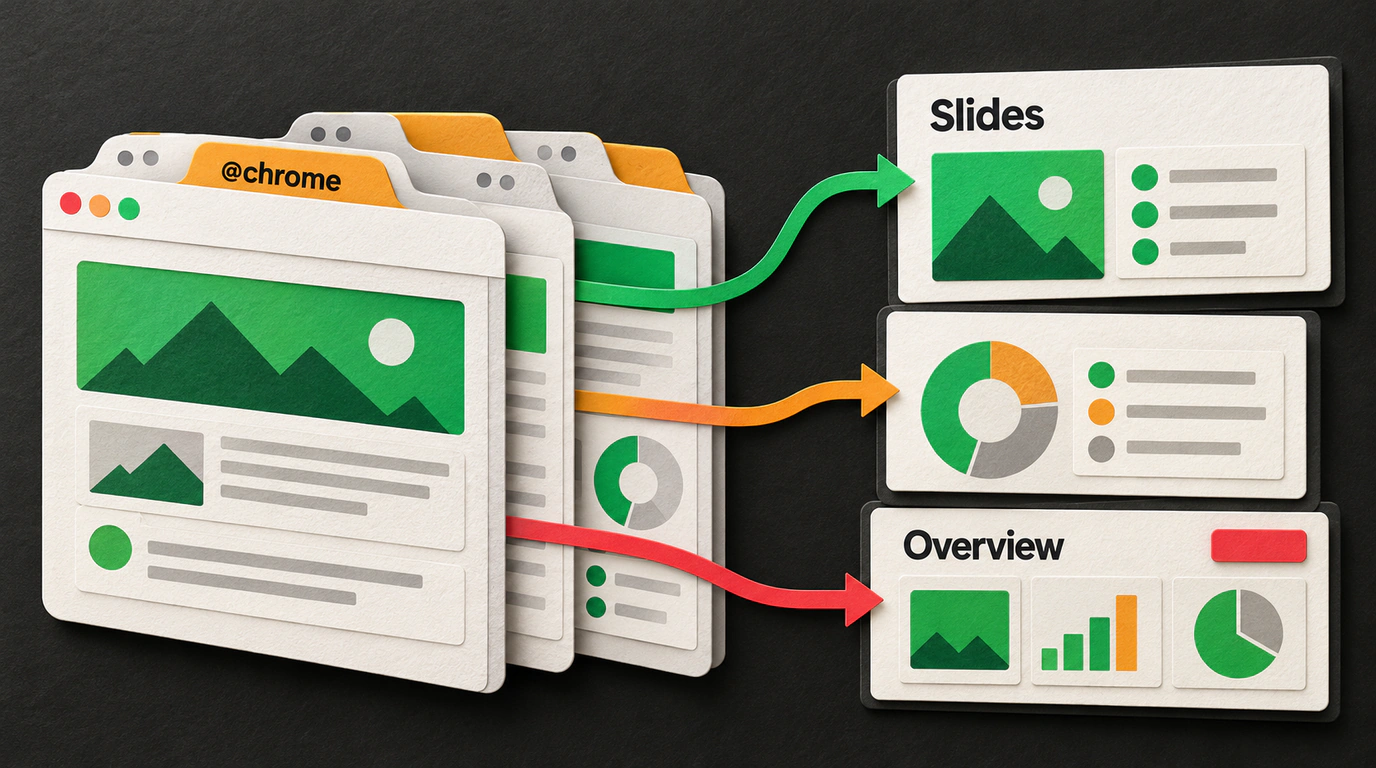
Picture a classic workday grind: you are asked to pick an enterprise software vendor or compare three cloud providers. You open a dozen tabs full of pricing tiers, spec sheets, and user reviews. Then the copy-paste nightmare starts: grab a paragraph from tab one, paste it into ChatGPT, jump back for the second link, copy a table, switch tabs again... By tab five, you have lost your train of thought, and your chat window looks like a landfill of messy quotes.
OpenAI solved this cleanly by launching an official extension for Chromium browsers (Chrome, Edge, Brave, Opera) alongside ChatGPT Slides right inside the web app. Passive copy-pasting gives way to end-to-end agentic browsing, turning the browser itself into an operating environment for AI.
Two Modes of Operation: Reading vs. Autonomous Action
Once you install the extension, you summon the assistant right from the prompt bar using the @chrome directive. It operates in two distinct modes:
1. Chat Mode (Multi-Tab Analysis)
Here, the model gets read-only access to the DOM tree of the tabs you specify. You simply type: @chrome compare the pricing plans in open tabs 2, 4, and 5 and highlight any hidden traffic caps. Instead of re-fetching pages through an external scraper, the extension reads the exact live state of your browser tabs, including dynamically loaded tables and collapsed accordions.
This neatly solves the authentication problem: if you are already signed into a private company portal or analytics dashboard, the extension sees exactly what is on your screen—no cookie forwarding or API keys required. The agent cross-references open pages, catches discrepancies in terms of service, and compares fine-print clauses side by side.
2. Work Mode (Agentic Actions)
This is where OpenAI's Computer Use capabilities kick in. The assistant can take physical actions inside the browser: group dozens of chaotic tabs into topic folders, download attached PDF reports, and fill out routine web forms using details from your profile. We tracked the rollout of this ecosystem in OpenAI Rolls Out ChatGPT Work and Autonomous Dots Agents.
For instance, you can tell the agent: "Find the application form on this open job listing, pull my resume from my profile, fill in my contact details, and draft a cover letter." The agent steps through the input fields, populates the text, and pauses for your review. On e-commerce sites, Work mode can even scan open coupon tabs for promo codes and test them at checkout automatically.
Work mode enforces a strict Human-in-the-loop rule. Whenever the agent is about to click a final order submission button, send an internal chat message, or process a payment, execution halts immediately. A confirmation dialog pops up with the affected fields highlighted, and nothing goes through until you click approve.
ChatGPT Slides: From Scattered Notes to a Finished Pitch Deck
Another universal office headache is building presentations. How many hours vanish into PowerPoint or Google Slides just nudging blue rectangles, hunting for icons, and cramming a long paragraph into a slide card?
Desktop still life with printed pitch-deck slide cards and a slim laptop displaying a finished presentation
The built-in ChatGPT Slides tool takes over layout and visual hierarchy completely:
- You feed it meeting notes or an analytical summary pulled from your open tabs;
- The model automatically structures the narrative into 8–10 slides: opening hook, problem statement, key metrics (with bold callout numbers), implementation timeline, and benefit cards;
- Every element stays interactive: right inside the UI, you can tweak accent colors, drag blocks around, and swap icons in a single click.
You can export decks to standard .pptx or .pdf files, or share a live web link with interactive charts. Need to update the revenue forecast on slide three? Just type in the chat: "Recalculate the numbers with a 15% discount applied," and the chart rebuilds on the spot while preserving your brand palette. We mapped out the stages of AI delegation in From Chat to Autonomous Agents: 5 Levels of Using ChatGPT in Business and Routine Tasks, and slide generation has firmly claimed the rapid-visualization tier.
To keep your bank accounts and private messages off-limits, open the Chrome extension settings and restrict its scope to 'On click' or add banking and government service portals (such as Gosuslugi) to a strict blocklist.
Some corporate dashboards locked behind complex Shadow DOM trees or rendering charts strictly onto HTML5 Canvas without text layers may pass incomplete data to the extension. In those cases, using the built-in page screenshot feature is a much more reliable way to extract the numbers.
Slides also slots smoothly into team workflows: you can send a generated deck straight to colleagues for review, attach comments to individual slides, and export to a corporate template without breaking formatting.
Pairing the multi-tab browser agent with Slides erases the gap between gathering information and presenting conclusions. Your workday shrinks by the exact hours you used to burn hopping between windows.