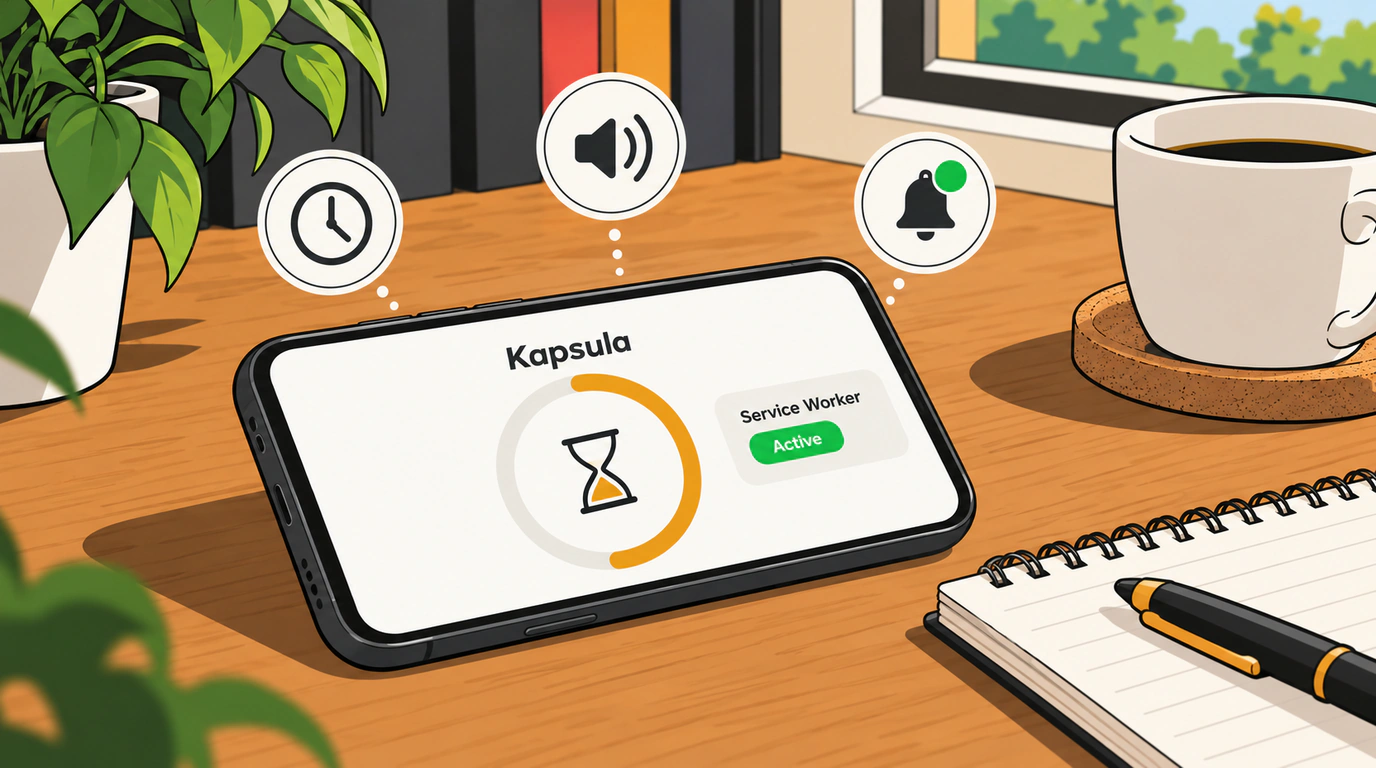
Progressive Web Apps (PWAs) have promised developers paradise for years: write your app once in HTML, CSS, and JavaScript, pin an icon to the smartphone home screen, and get a full-featured app without Apple’s 30% App Store cut, review bottlenecks, or multi-platform build headaches.
Yet the moment you build something that needs real-time execution—an interval workout timer, an alarm clock, a pedometer, or an audio player—that rosy picture crashes straight into the harsh reality of mobile operating systems.
Picture a classic scenario: a user opens your web timer, sets it for 15 minutes, locks their phone screen, or switches to Telegram to reply to a message. What happens next? Within 5 to 10 seconds, the mobile browser (especially iOS WebKit) puts the tab into a deep sleep. Every setTimeout and setInterval you scheduled freezes. Time literally stops. Thirty minutes later, the user unlocks their phone, the timer suddenly wakes up and starts screaming. The experience is ruined, and your home screen shortcut gets deleted.
The creator of the mobile PWA timer Kapsula ran headfirst into this exact wall and went through every circle of engineering hell to make the app run reliably in the background on both iOS and Android. Let’s walk through the battle-tested architectural tricks—and the OS limits behind them.
Why Mobile OSes Kill Background Web Apps
A PWA developer’s biggest enemy is mobile battery-saving and memory-management policy (iOS Throttling Policy and Android Doze Mode):
- iOS Safari / WebKit: as soon as a web app loses focus (
document.visibilityState === "hidden"), timer frequency is throttled down to once per minute. Once the screen locks, background sockets and scripts freeze completely within seconds. - Android Chromium: a bit more forgiving, though with battery saver enabled it will still ruthlessly terminate background Service Workers after a couple of minutes of inactivity.
We took a closer look at how the modern PWA runtime works and what platform barriers exist in the anatomy of PWAs in 2026: installation barriers and limitations.
The Architectural Triad: Keeping Your PWA Alive
To make sure a timer actually fires on time, you can’t naively assume JavaScript will spin a loop every second on a sleeping phone. A reliable setup rests on three pillars:
Diagram of a fault-tolerant browser timer: synchronizing absolute system time with Date.now(), a background Web Worker, and the Screen Wake Lock API.
1. Absolute Time Instead of Ticks (Timestamp Delta)
Forget incrementing or decrementing a counter like secondsRemaining = secondsRemaining - 1. If the tab gets suspended for 10 minutes, your counter loses those 10 minutes.
Instead, anchor all logic to an absolute system finish timestamp:
const targetEndTime = Date.now() + durationInMs;
When the user unlocks the screen, the app listens for visibilitychange and immediately recalculates what’s left: Math.max(0, targetEndTime - Date.now()).
2. Scheduling Alerts via Service Worker and Web Notifications
To make sure an alert fires even when the phone is locked, schedule the notification at the Service Worker level using the Notification API:
// sw.js — background service worker
self.addEventListener('notificationclick', (event) => {
  event.notification.close();
  event.waitUntil(
    clients.matchAll({ type: 'window' }).then((clientList) => {
      for (const client of clientList) {
        if (client.url === '/' && 'focus' in client) {
          return client.focus();
        }
      }
      if (clients.openWindow) {
        return clients.openWindow('/');
      }
    })
  );
});

// Listen for a command from the main app to start the system timer
self.addEventListener('message', (event) => {
  if (event.data.action === 'SCHEDULE_ALARM') {
    const { delayMs, title, body } = event.data;

    setTimeout(() => {
      self.registration.showNotification(title, {
        body,
        icon: '/icons/timer-192.png',
        badge: '/icons/badge-72.png',
        vibrate: [200, 100, 200],
        requireInteraction: true
      });
    }, delayMs);
  }
});
3. The Silent Audio Hack
When a sound needs to play loudly through the speaker rather than as a quiet system notification—say, a gong at the end of a workout interval—mobile OSes carve out an exception: active audio playback is not frozen.
When a timer starts, Kapsula kicks off a looped silent audio stream (Silent Audio Track) via AudioContext or an <audio loop src="silence.mp3"> element:
// audioKeeper.js
class BackgroundAudioKeeper {
  constructor() {
    this.audioCtx = null;
    this.oscillator = null;
  }

  // Must be started inside a user gesture (e.g. clicking "Start")
  start() {
    const AudioContextClass = window.AudioContext || window.webkitAudioContext;
    this.audioCtx = new AudioContextClass();

    // Create an oscillator with near-zero amplitude (inaudible to the human ear)
    this.oscillator = this.audioCtx.createOscillator();
    const gainNode = this.audioCtx.createGain();

    gainNode.gain.value = 0.001; // Virtually silent
    this.oscillator.connect(gainNode);
    gainNode.connect(this.audioCtx.destination);

    this.oscillator.start();
  }

  stop() {
    if (this.oscillator) {
      this.oscillator.stop();
      this.audioCtx.close();
    }
  }
}
As long as an active audio context is running, the OS treats the page as a media player and avoids putting the tab into aggressive sleep mode, letting your code track intervals and play a loud chime right on cue.
Keeping the Screen Awake with the Screen Wake Lock API
Another classic timer headache: someone props their phone up on a gym rack, holds a plank, and wants to watch the seconds tick down—only for the screen to dim and lock after 30 seconds.
Modern Chrome and Safari ship the native Screen Wake Lock API:
let wakeLock = null;

async function requestWakeLock() {
  try {
    wakeLock = await navigator.wakeLock.request('screen');
    wakeLock.addEventListener('release', () => {
      console.log('Screen wake lock released');
    });
  } catch (err) {
    console.error('Wake Lock error:', err);
  }
}

// Re-request the wake lock when the tab becomes visible again
document.addEventListener('visibilitychange', async () => {
  if (wakeLock !== null && document.visibilityState === 'visible') {
    await requestWakeLock();
  }
});
The Cost of Trade-Offs
These workarounds require restraint. Keeping silent audio running indefinitely drains a smartphone battery noticeably faster than normal.
Kapsula’s developers settled on a hybrid strategy: silent audio runs only during short, active workout intervals (up to 15–20 minutes), while multi-hour background timers rely solely on timestamp math and system push notifications.
That engineering balance lets you ship PWAs that feel every bit as capable as native store apps.

